

User Guide
How to read, search and study the Pāli Canon
1. Welcome to PaliVerse
PaliVerse is a complete English translation of the Pāli Canon (the Tipiṭaka) together with its ancient commentaries (Aṭṭhakathā) and subcommentaries (Ṭīkā), presented with interactive study tools. Everything in the Canon can be read free of charge, without creating an account.
Two features make PaliVerse more than a library of texts. First, every numbered paragraph of the Canon comes with its own explanation, written from the commentary and the subcommentary on that very paragraph, so the traditional understanding of each passage is always one click away (section 9); with the explanation window open, members can also ask their own questions about that particular paragraph. Second, Ask PaliVerse lets you put a question in plain language to the whole collection (section 15). It is not a general chatbot answering from its own memory: every answer is composed from passages retrieved from the original texts, the root text together with its commentary and subcommentary, and the passages used are listed under the answer so that you can read them in context and verify the answer against the source.
The texts are organised in three “baskets”, and each basket exists in three layers:
| Basket | Pāli name | What it contains |
|---|---|---|
| The Canon of Discourses | Sutta-piṭaka | The Buddha’s discourses in five collections: Dīgha Nikāya (the Long Discourses), Majjhima Nikāya (the Middle Length Discourses), Saṃyutta Nikāya (the Connected Discourses), Aṅguttara Nikāya (the Numerical Discourses) and Khuddaka Nikāya (the Minor Texts). |
| The Canon of Discipline | Vinaya-piṭaka | The monastic code: Expulsion, Expiation, the Great Chapter, the Minor Chapter and the Supplement. |
| The Canon of Higher Teaching | Abhidhamma-piṭaka | The systematic analysis of mind and matter in seven books. |
| Layer | Pāli name | Meaning |
|---|---|---|
| Root text | Pāḷi / Mūla | The canonical text itself. |
| Commentaries | Aṭṭhakathā | The classical commentaries that explain the root text paragraph by paragraph. |
| Subcommentaries | Ṭīkā | The later commentaries that explain the commentaries. |
This guide first shows how to find a text (browsing, the Sutta Index and Search), then explains the reading screen and its study tools, then Ask PaliVerse and the features reserved for members, and finally covers the podcasts, use on a phone or tablet and the reuse of the translations.
2. Finding your way around the site
Open on the site: Home page (opens in a new tab)
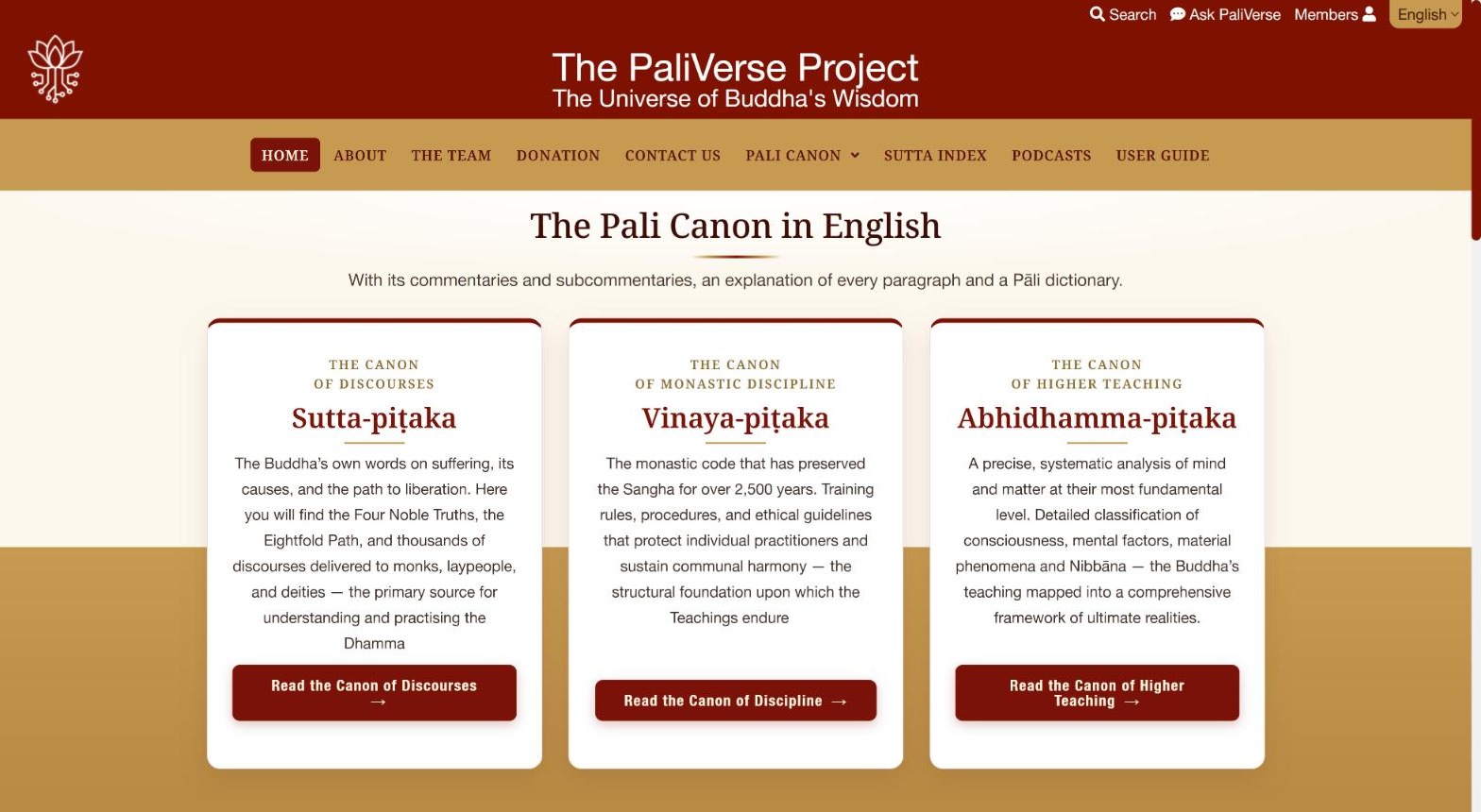
Every page has the same frame:
- Top right corner: Search (search the whole Canon), Ask PaliVerse (ask a question in plain language), Members (log in or apply for membership).
- Gold menu bar: Home, About, The Team, Donation, Contact Us, Pali Canon (a drop-down menu with the nine index pages), Sutta Index, Podcasts and User Guide (this page).
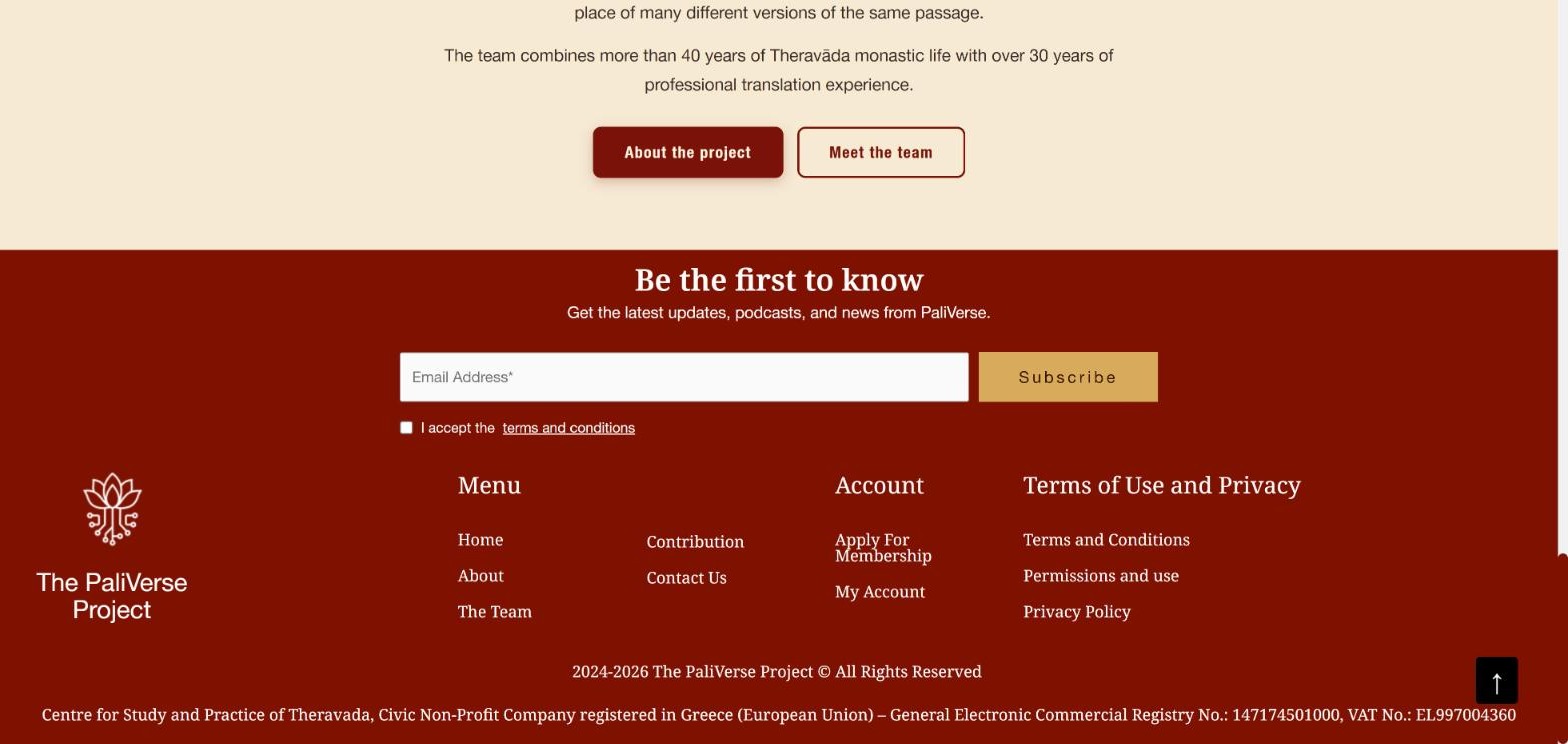
- Footer: a newsletter sign-up (“Be the first to know”), links to Apply for Membership, My Account, Terms and Conditions, Permissions and Use and the Privacy Policy, and the details of the operating organisation, the Centre for Study and Practice of Theravada in Athens.
3. Finding a text
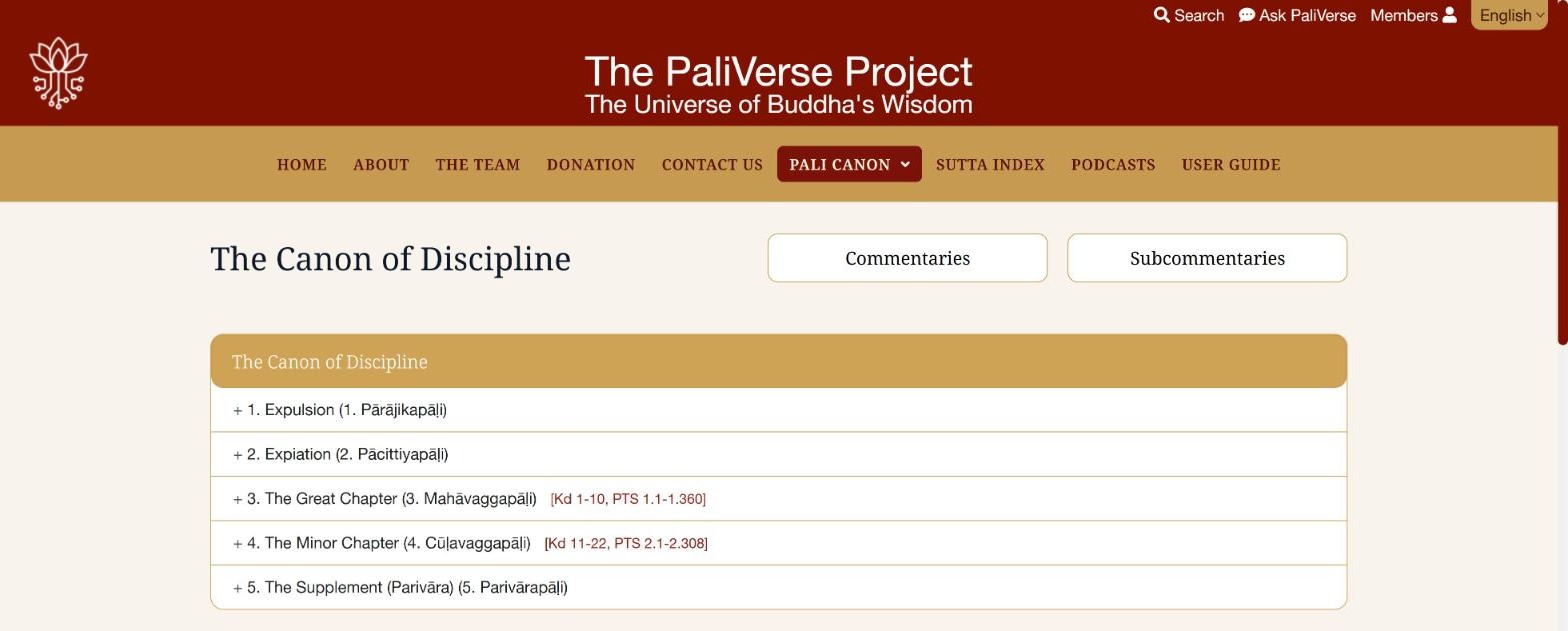
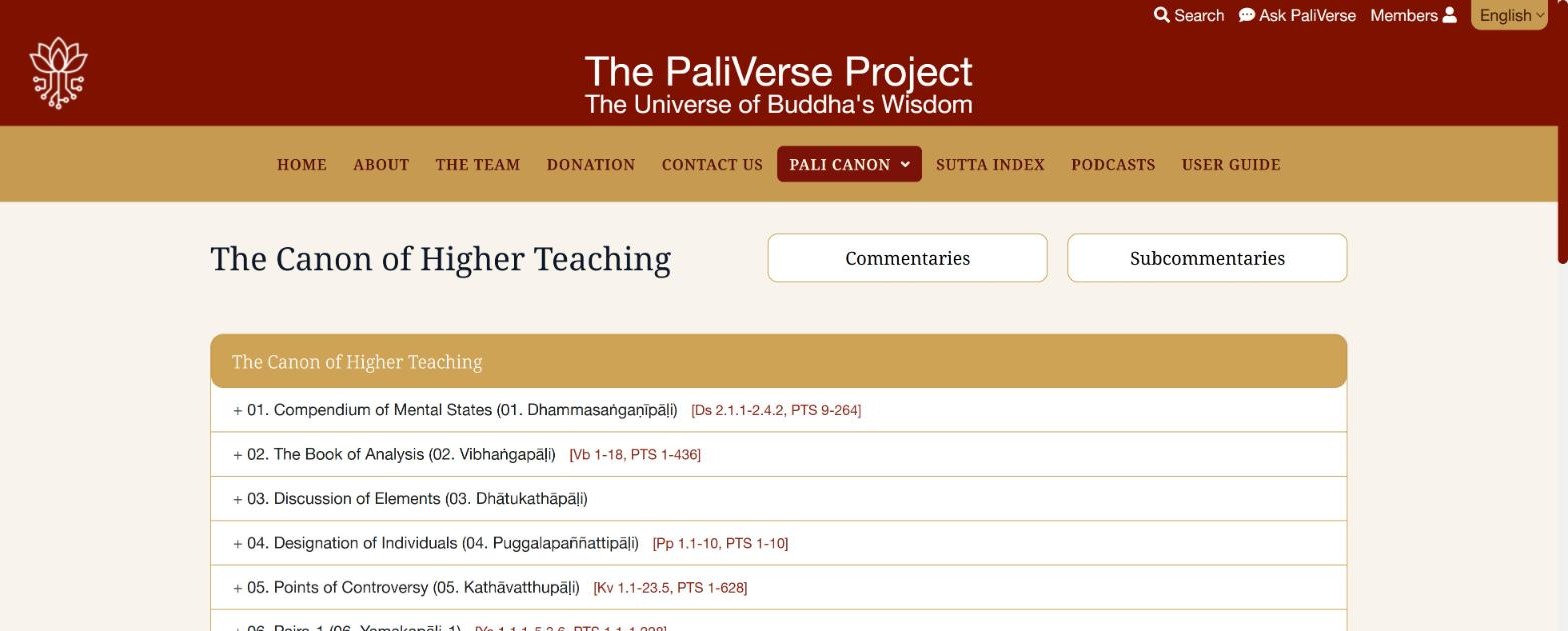
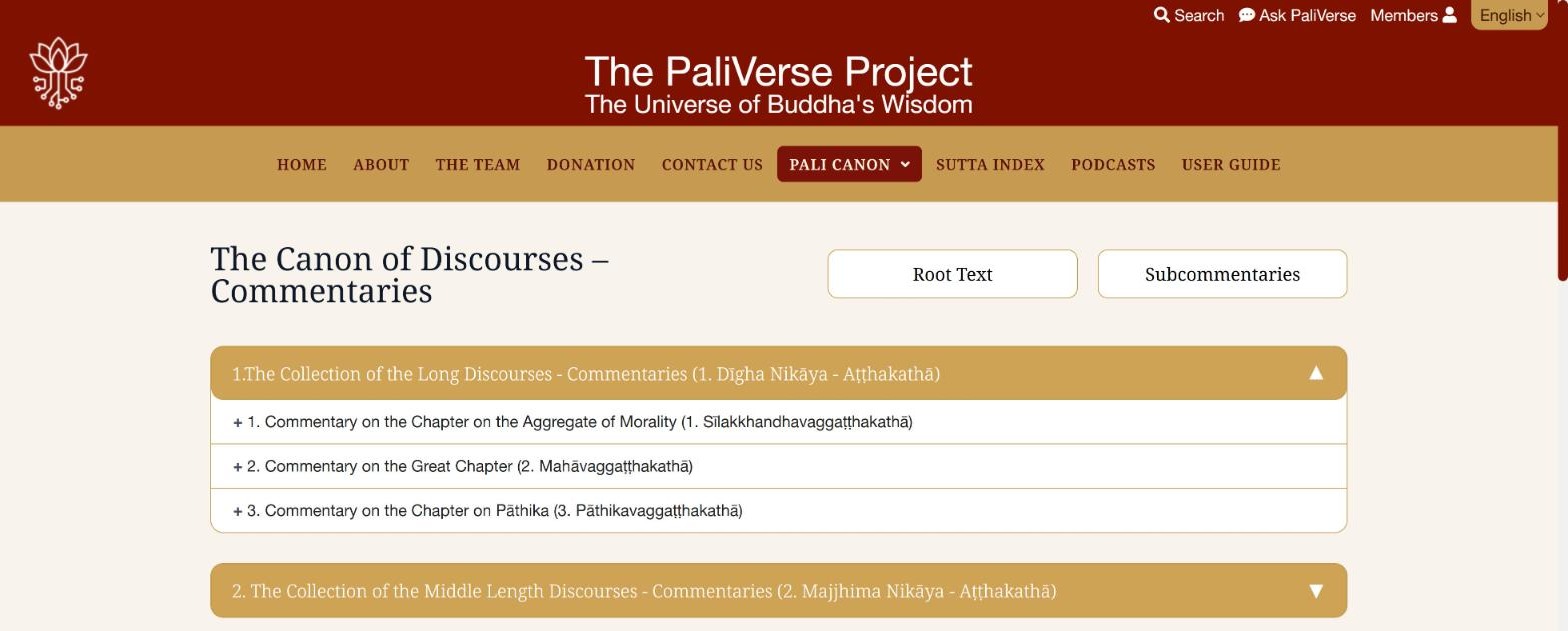
Open on the site: The Canon of Discourses · The Canon of Discipline · The Canon of Higher Teaching (opens in a new tab)
There are four ways to reach a text: browse the Pali Canon menu, use the alphabetical Sutta Index, run a Search, or follow a reference from an Ask PaliVerse answer. Browsing is described here; the Sutta Index is covered in section 4, Search in section 5 and Ask PaliVerse in section 15.
3.1 Browsing with the Pali Canon menu
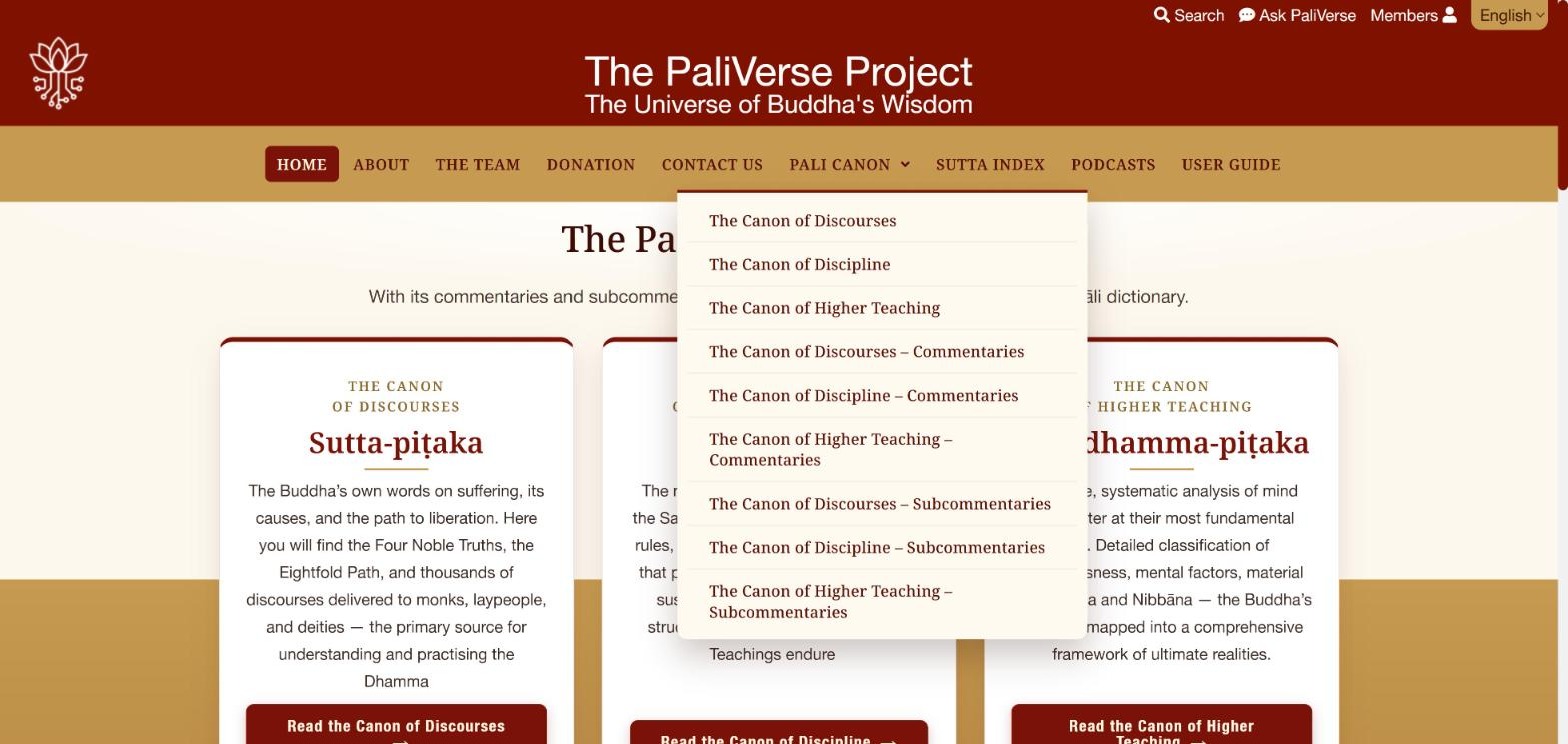
Choose the basket and the layer you want. The same pages are reached from the three cards on the home page (root texts only): click the button on a card, for example Read the Canon of Discourses.
3.2 The index pages
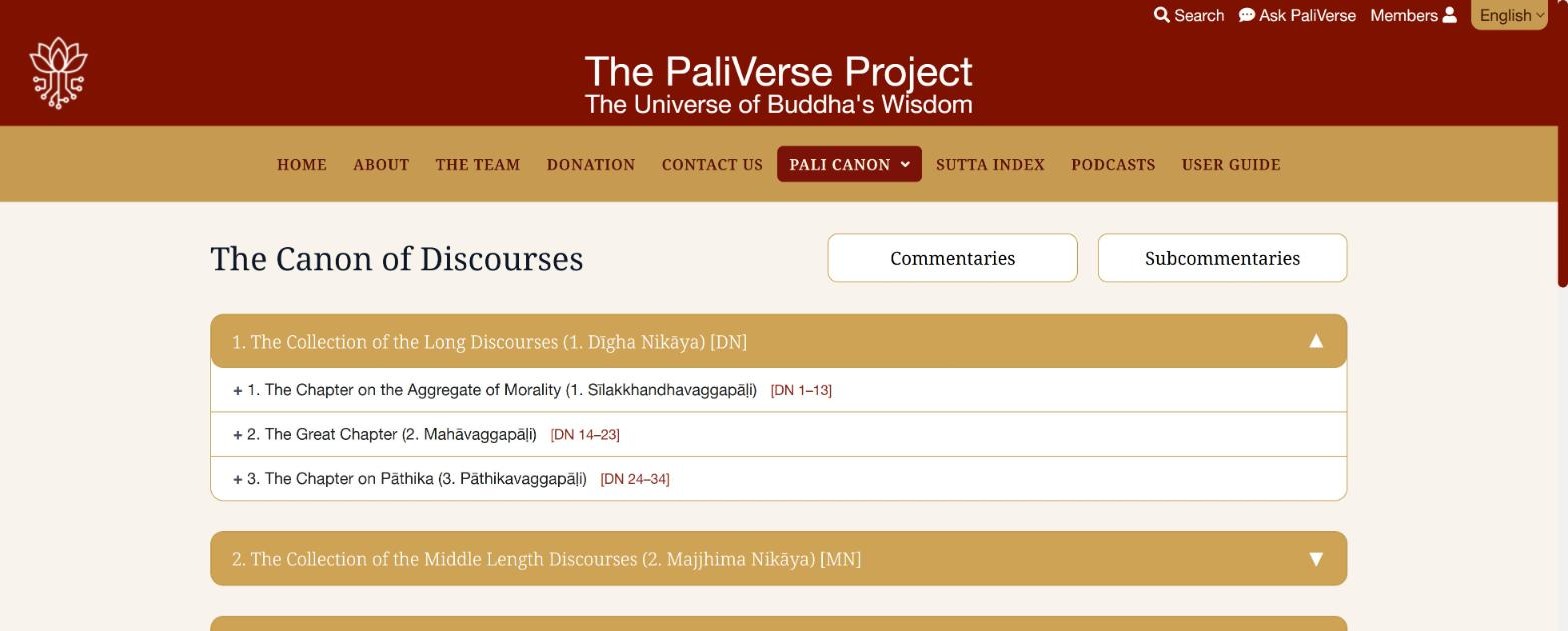
- Click a gold bar (for example “1. The Collection of the Long Discourses”) to open or close that collection. The small triangle on the right shows whether it is open.
- Inside a collection, each chapter (vagga) is listed with a + sign. Click the + to reveal the individual discourses in that chapter.
- Click the title of a discourse to open it in the reading screen. Clicking a chapter title opens the reading screen at the first discourse of that chapter.
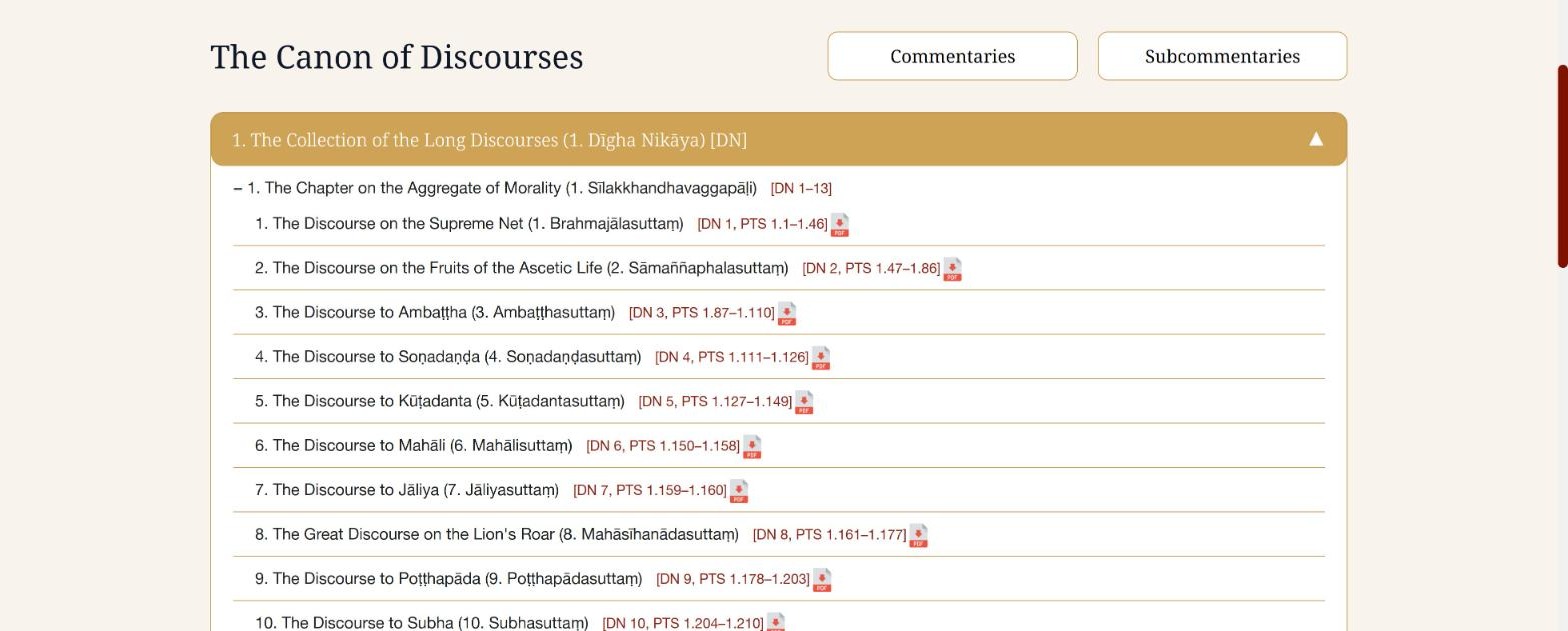
Reading the references. The code in square brackets gives the standard abbreviation (DN 1 = Dīgha Nikāya, discourse 1; MN, SN, AN for the other collections) followed by the page numbers of the Pali Text Society (PTS) edition, so that passages can be cited and compared with other translations.
4. The Sutta Index
Open on the site: Sutta Index (opens in a new tab)
The Sutta Index is the most direct way into the Canon of Discourses. Reached from SUTTA INDEX in the menu bar, it is an alphabetical list of all 3,574 discourses of the five collections, each with its Pāli name, its English title and its reference. Use it whenever you know the name or the number of a discourse: it saves opening the index pages and working down through collection and chapter.
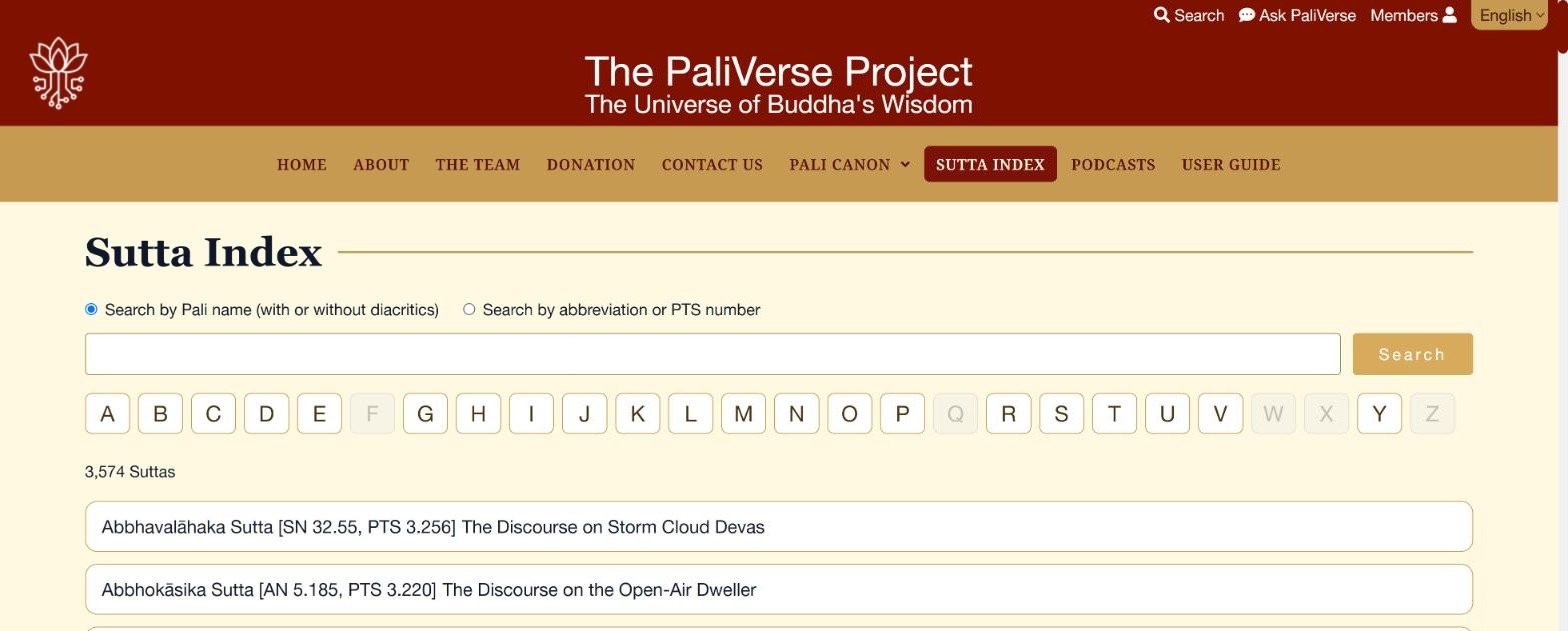
- Search by Pāli name (the default): type part of the name, with or without diacritics. “satipatthana” finds “Satipaṭṭhāna”.
- Search by abbreviation or PTS number: select the second option and type a reference such as MN 10, SN 22.59 or AN 4.141.
- Letter buttons that are greyed out have no discourses beginning with that letter.
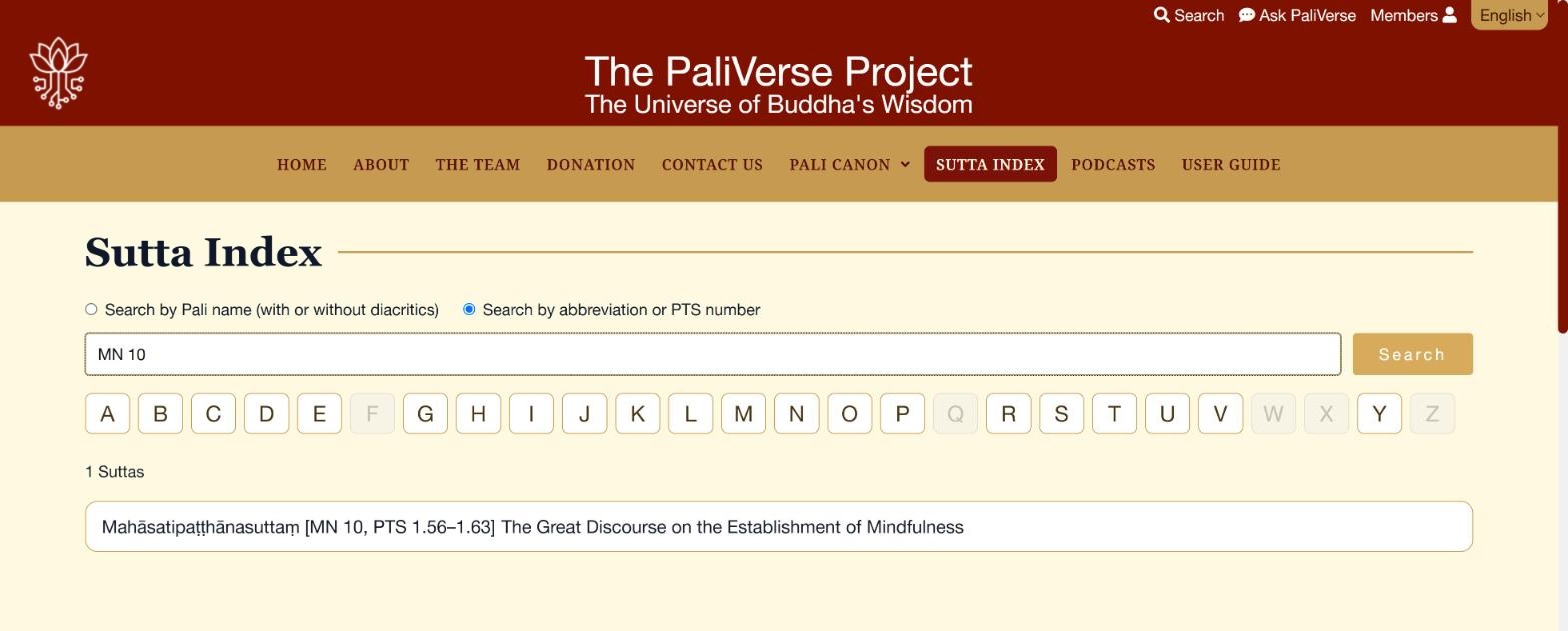
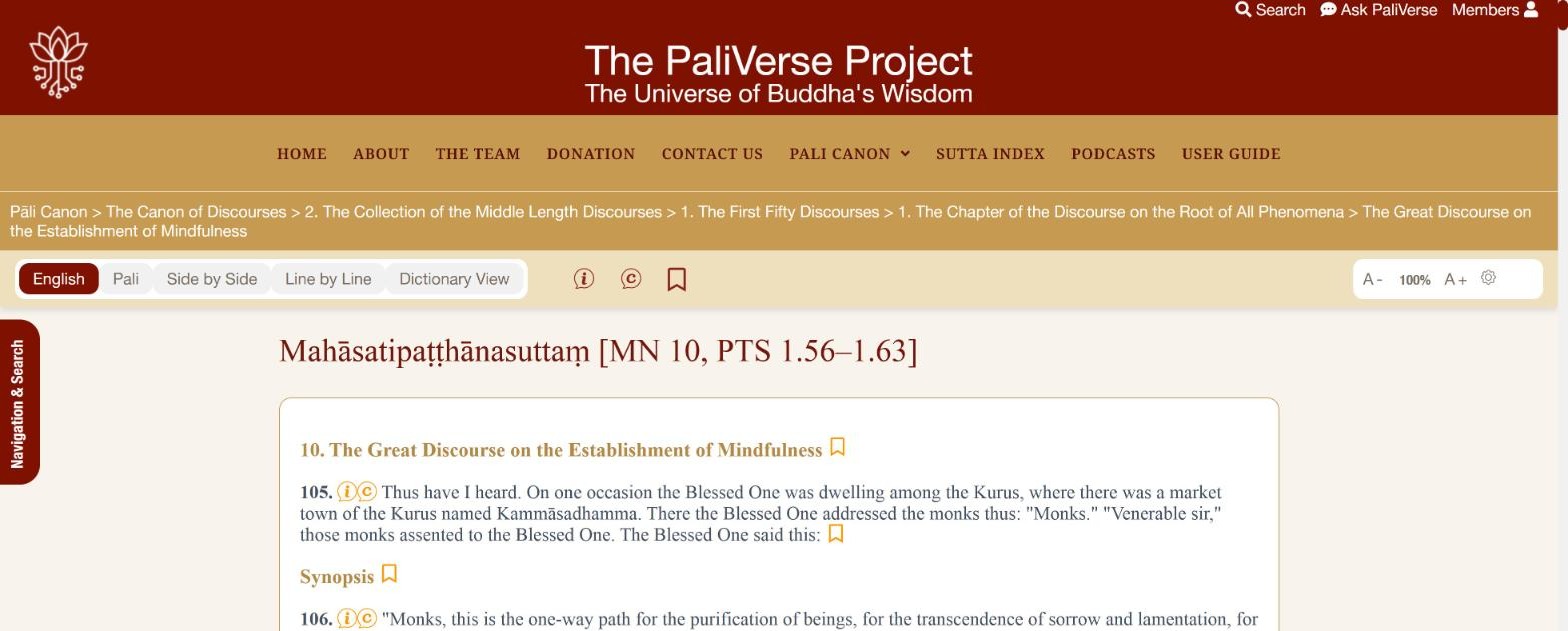
Click a result to open the discourse in the reading screen. Discourses opened from the Sutta Index show the Pāli title and reference as the page heading.
5. Searching the whole Canon
Open on the site: Search page (opens in a new tab)
The Search page (top right of every page, or the magnifying-glass floating button) searches the complete text of the Canon, its commentaries and subcommentaries, in Pāli or in English.
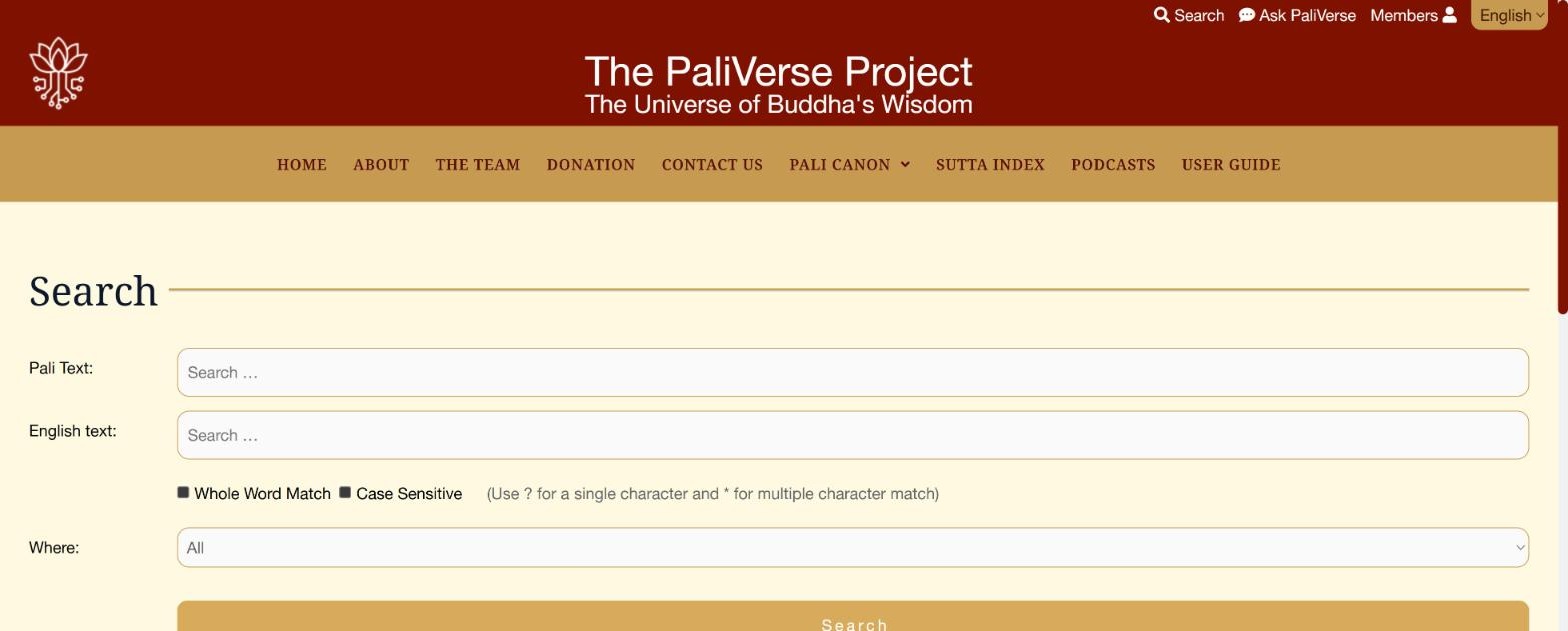
- Type your words in the Pali Text box to search the Pāli, or in the English text box to search the translation.
- Optionally tick Whole Word Match (so that “mind” does not also find “mindfulness”) or Case Sensitive.
- Use wildcards if you wish: ? stands for a single character and * for any number of characters. For example sati* finds sati, satipaṭṭhāna and satimā.
- Choose Where to search: All, Root Text, Commentaries or Subcommentaries.
- Click Search.
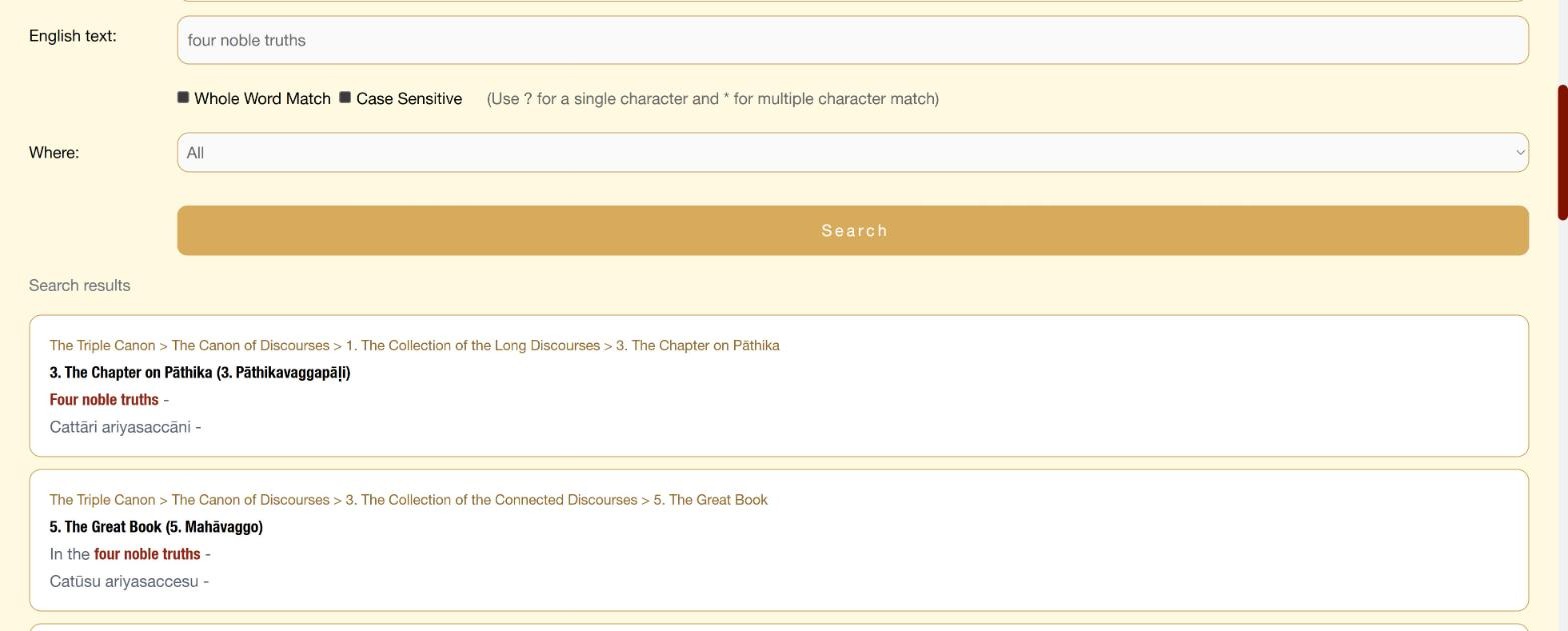
Click a result to open the text at that passage.
6. The reading screen
Try it on the site: Brahmajāla Sutta (the text shown in the pictures) (opens in a new tab)
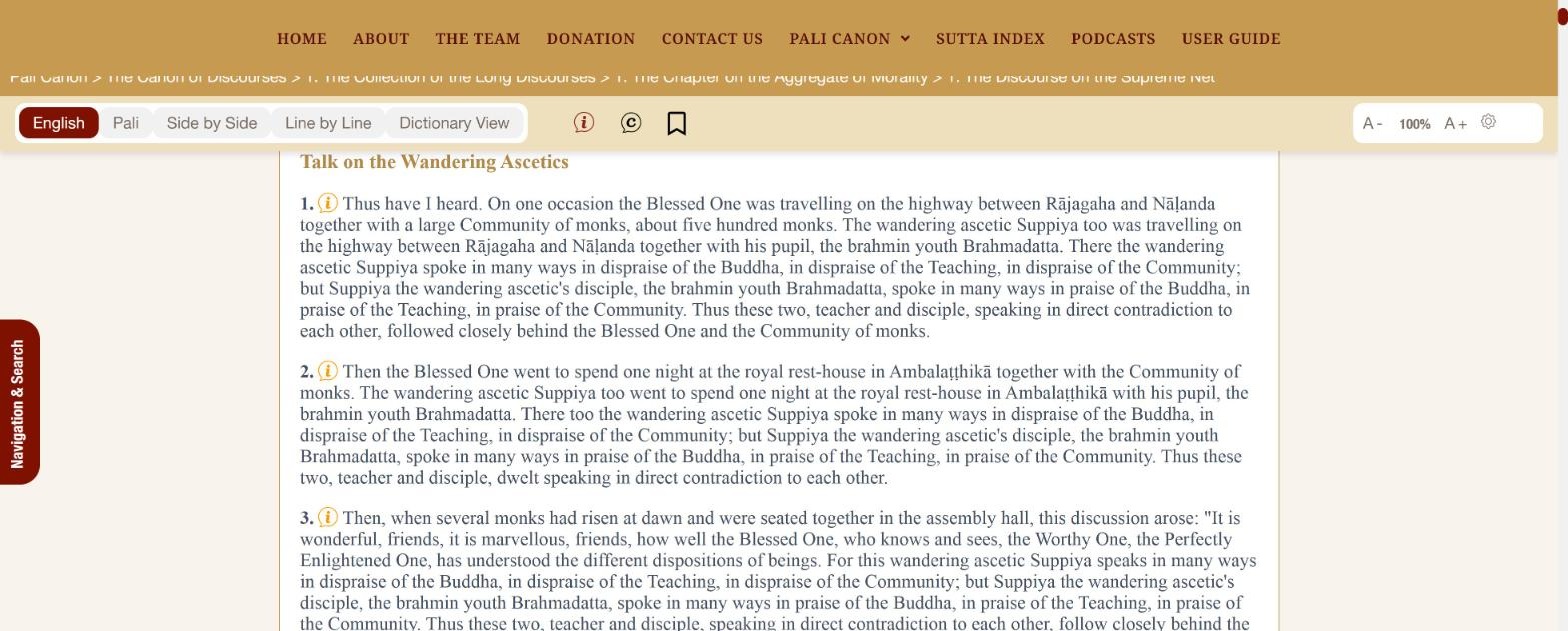
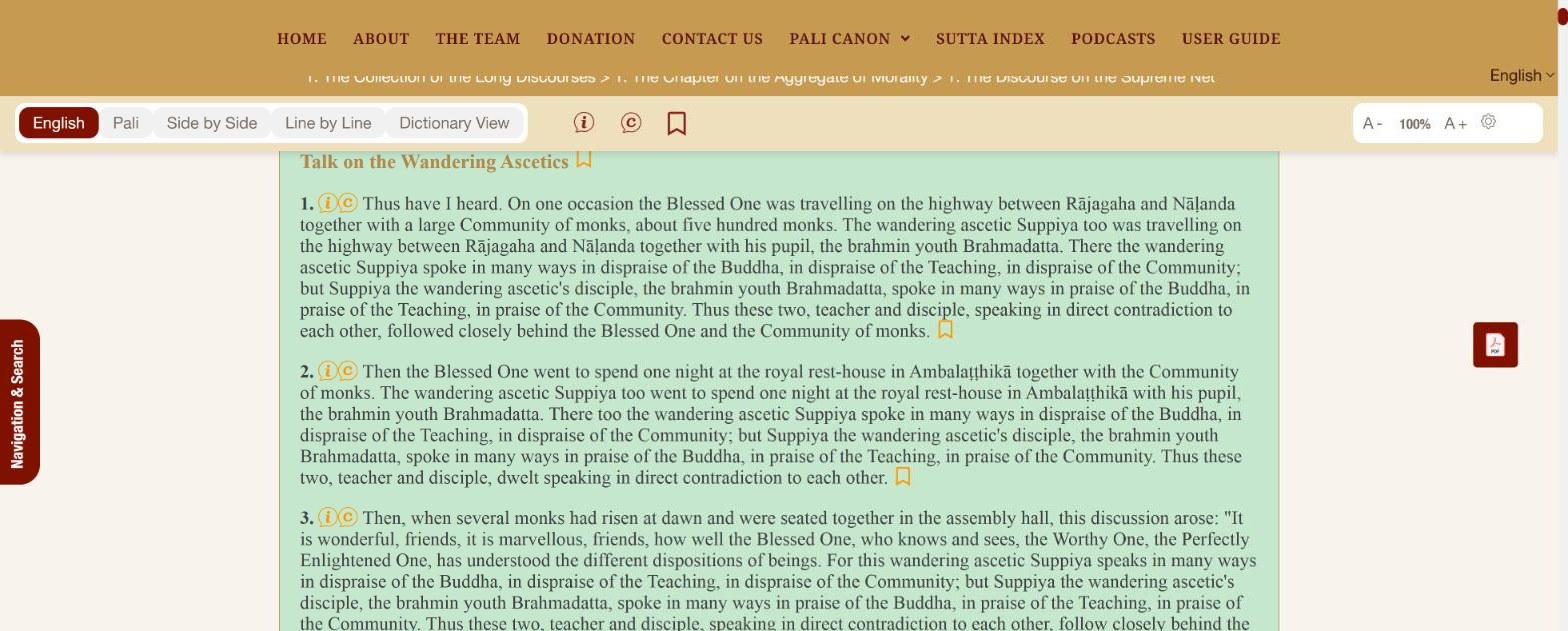
All texts open in the same reading screen. The picture below shows a discourse in the default English view; the table underneath explains each part of the screen.
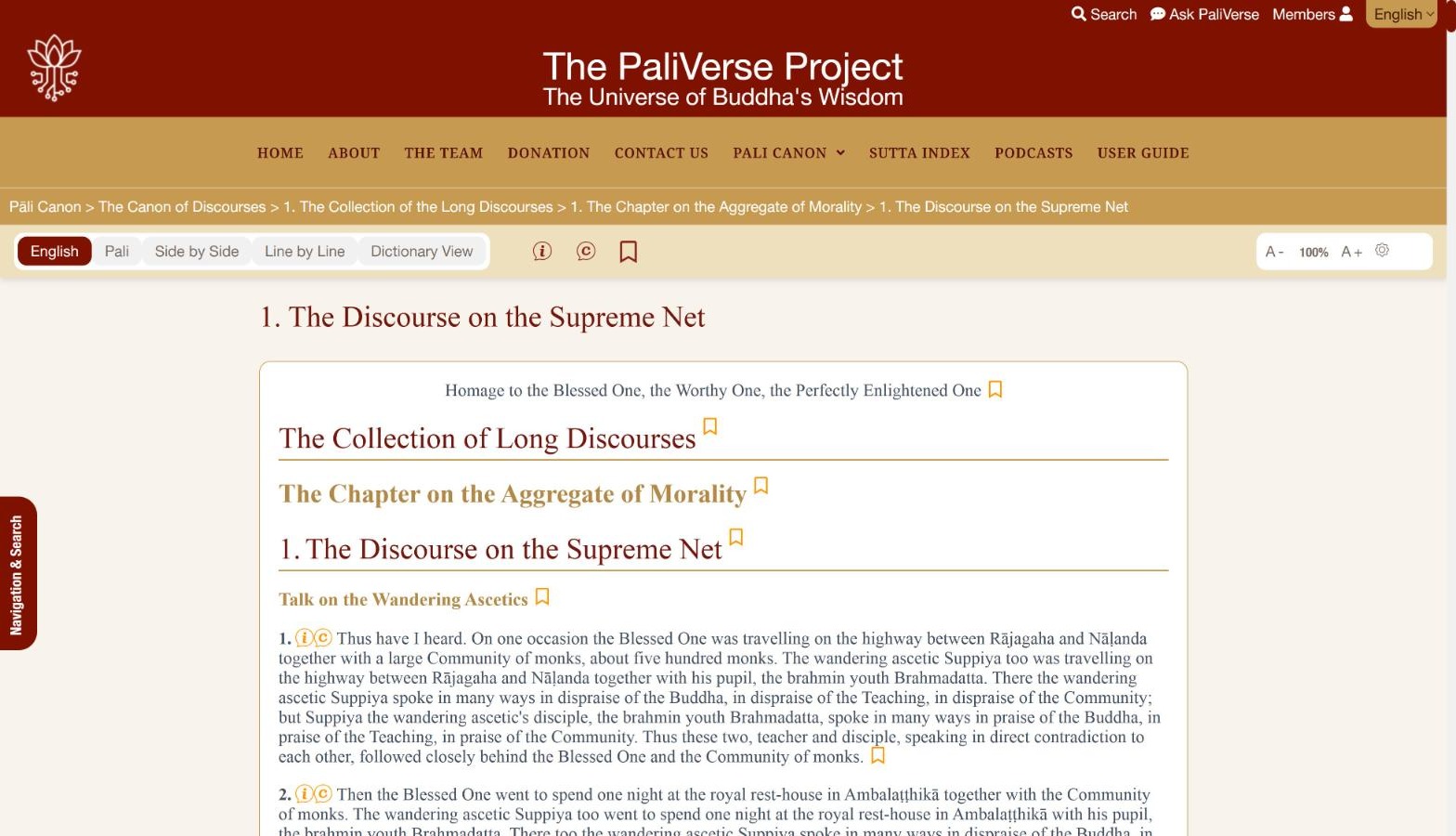
| Part | What it does |
|---|---|
| Breadcrumb line (gold bar) | Shows the full path of the text: Pāli Canon > basket > collection > chapter > discourse. Each part is a link, so you can go up one level with a single click. |
| View buttons (English, Pali, Side by Side, Line by Line, Dictionary View) | Choose how the Pāli and English are laid out. See section 7. |
| More Details | Shows an explanation of every paragraph. See section 9. |
| Commentaries and Subcommentaries | Links every paragraph to its commentary. See section 10. |
| Bookmarks | Lets you bookmark paragraphs. See section 17. |
| Notes | Lets members attach private notes to paragraphs. The icon appears only when you are logged in. See section 17. |
| A- 100% A+ and the gear | Text size, font and colour theme. See section 12. |
| Navigation & Search (red tab, left edge) | Opens a panel with the full table of contents, a search box for the current text, and your bookmarks. See section 11. |
| Floating buttons (right edge) | PDF download, Home, Search, Ask PaliVerse and back-to-top. See section 13. |
| Paragraph numbers (bold, in the text) | The standard paragraph numbering of the Pāli edition. Section headings appear in gold between the paragraphs. |
7. Choosing how the text is displayed
Try it on the site: Brahmajāla Sutta (opens in a new tab)
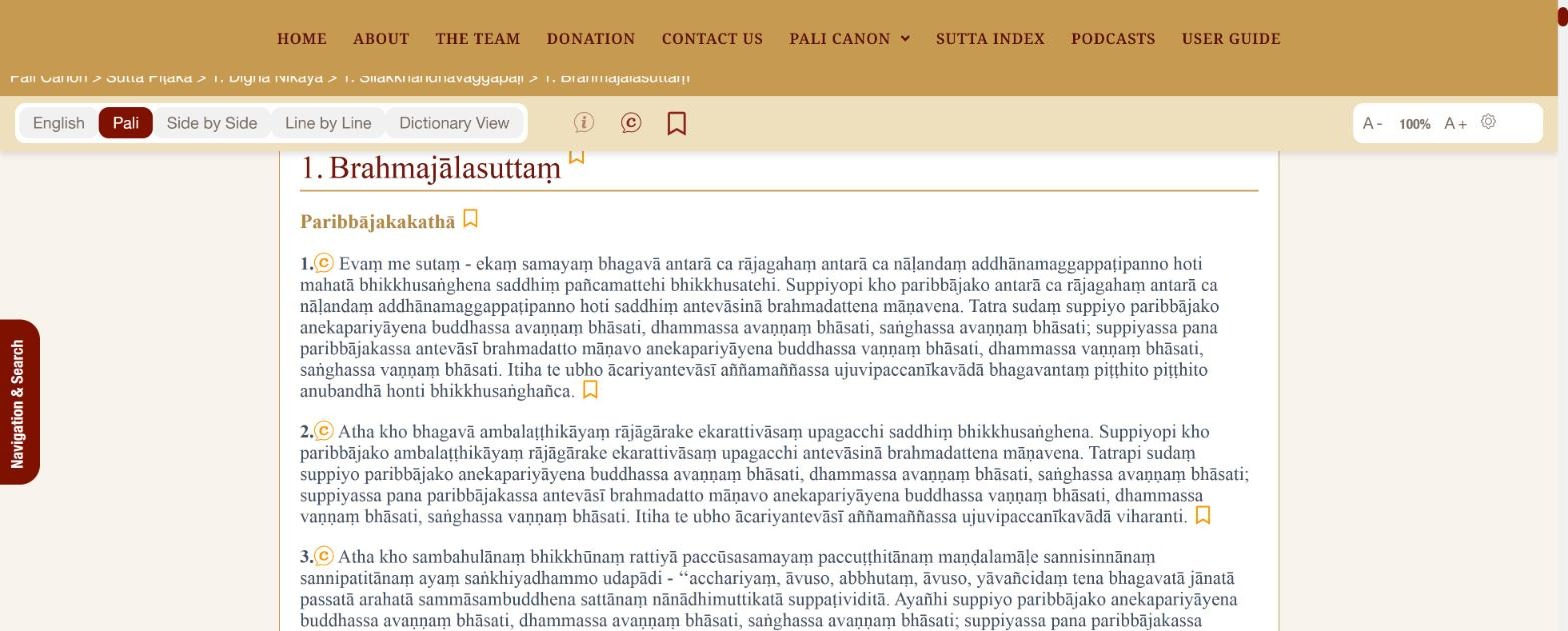
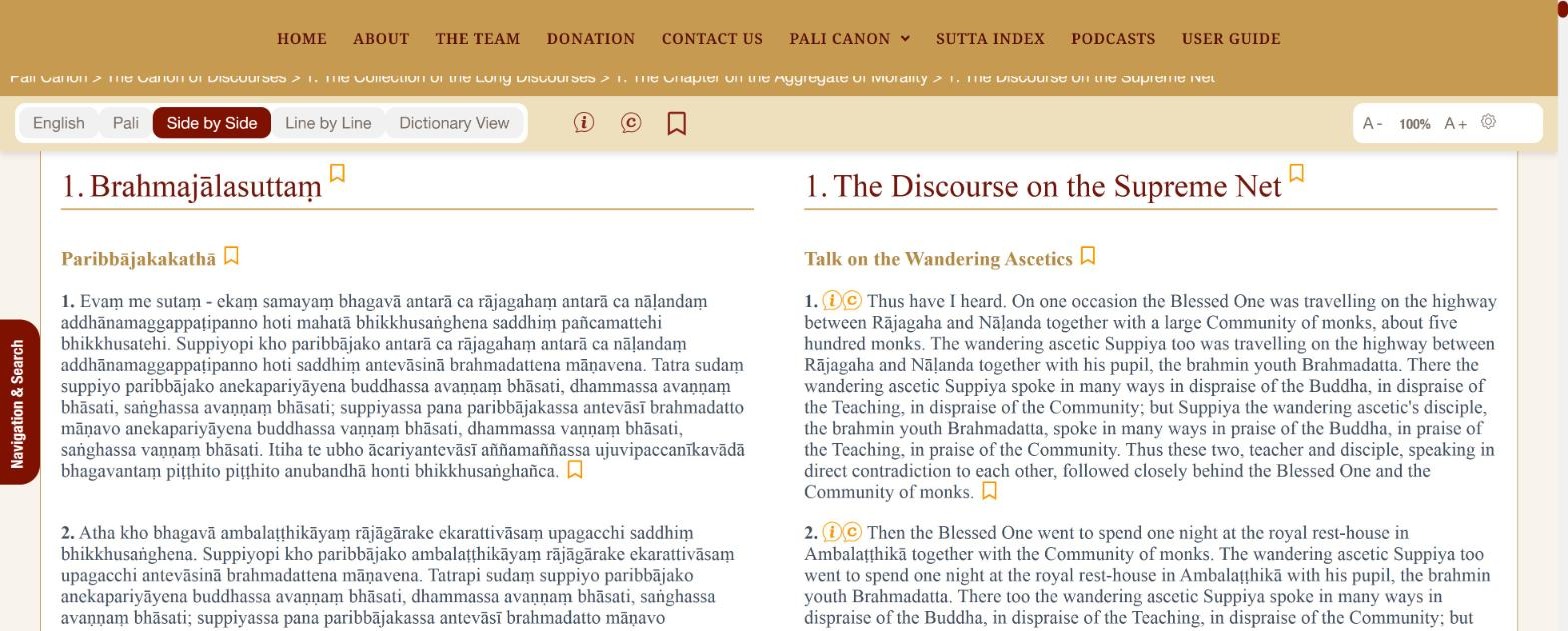
The five buttons at the left of the toolbar control the layout. The button currently in use is shown in dark red.
| Button | What you see |
|---|---|
| English | The English translation only. This is the default. |
| Pali | The Pāli text only, in Roman script with diacritics. |
| Side by Side | Two columns: Pāli on the left, English on the right, paragraph by paragraph. |
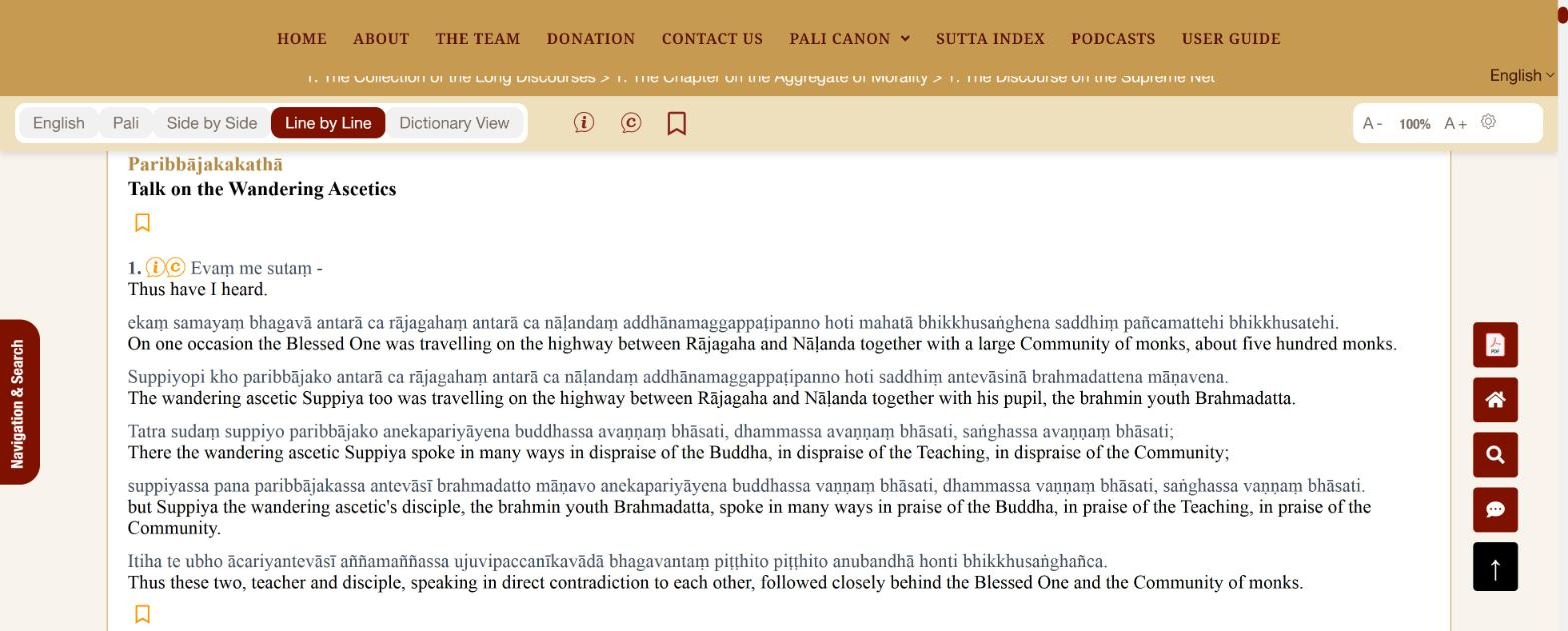
| Line by Line | Each Pāli sentence followed immediately by its English translation. Best for studying the language. |
| Dictionary View | Switches the dictionary on, so that every Pāli word can be clicked for its meaning. See section 8. |
8. Looking up Pāli words
Try it on the site: Brahmajāla Sutta (opens in a new tab)
With Dictionary View switched on, every Pāli word becomes clickable (the words are shown with a faint dotted underline). This works in any layout that shows Pāli text, and is most useful combined with Line by Line.
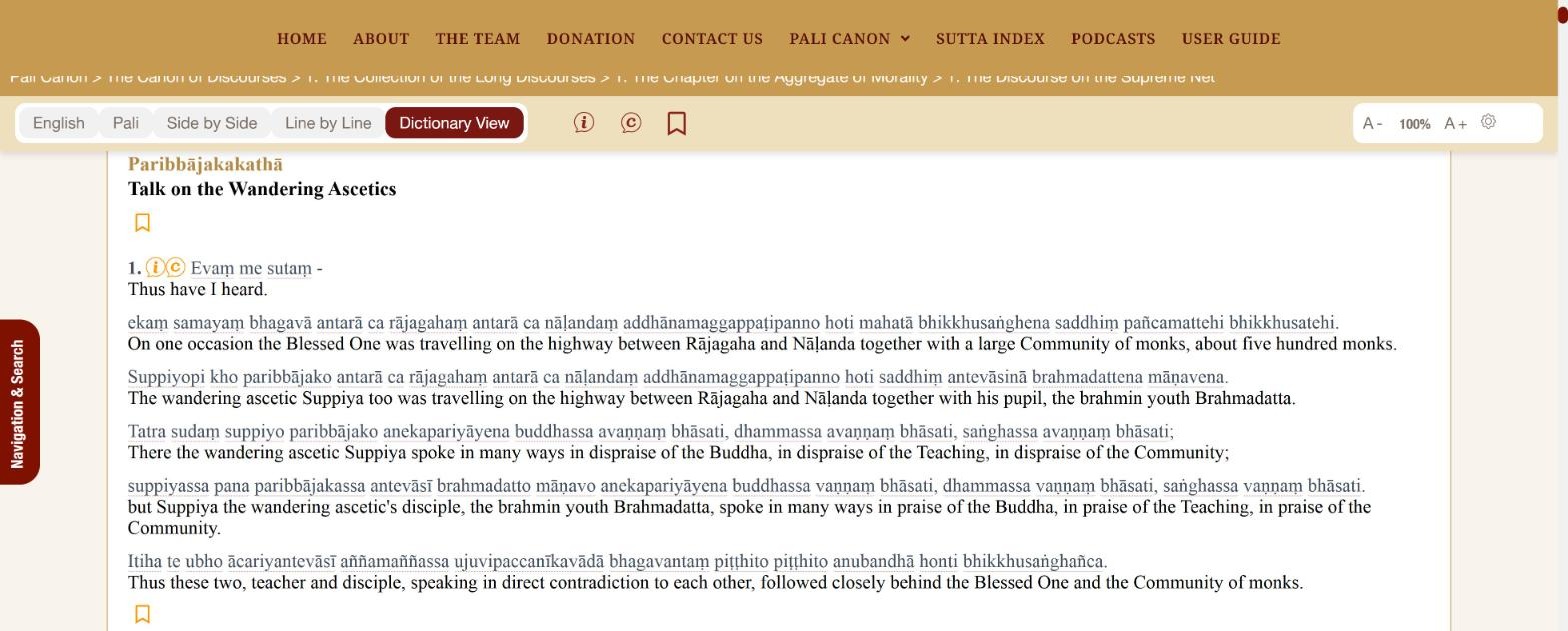
- Click Dictionary View in the toolbar.
- Click any Pāli word in the text.
- A dictionary window opens next to the word. Scroll inside it to see all the entries.
- Close it with the × in its top right corner, or simply click another word.
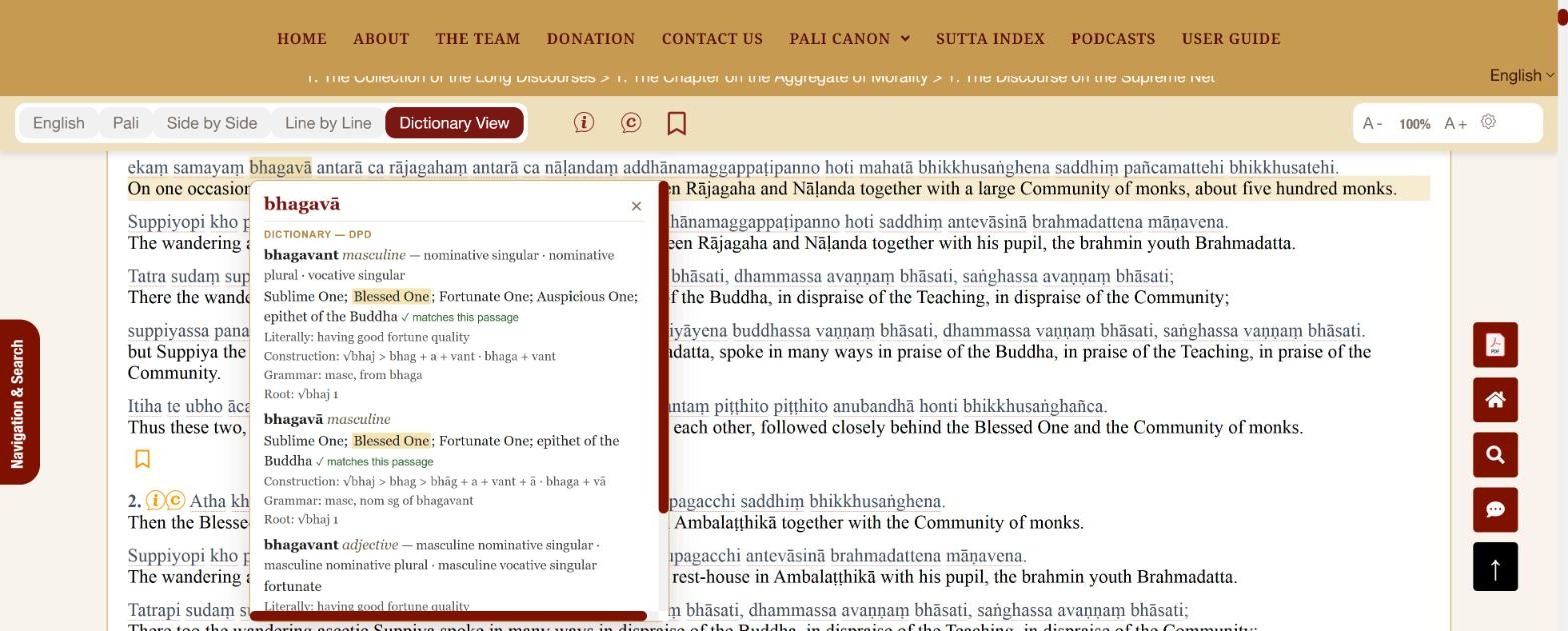
Each entry comes from the Digital Pāli Dictionary (DPD) and shows:
- the headword and its part of speech (masculine, adjective, and so on) and the grammatical case and number of the form you clicked;
- the meanings, with the one used in the translation highlighted and marked matches this passage;
- the literal meaning, the construction of the word from its parts, grammar notes and the verbal root.
9. Explanations of each passage
Try it on the site: Brahmajāla Sutta (opens in a new tab)
The icon in the toolbar (“Context, key terms and doctrinal meaning”) opens a plain-language explanation of any paragraph, drawing on the commentarial tradition.
 markers next to the paragraph numbers. They are shown when you first open a text.
- Find the small marker beside the paragraph number. The markers are shown by default; if you do not see them, click the icon in the toolbar (a second click hides them again).
- Click the marker next to the paragraph you are interested in.
- An explanation window opens over the text. Close it with the red × in the top right corner.
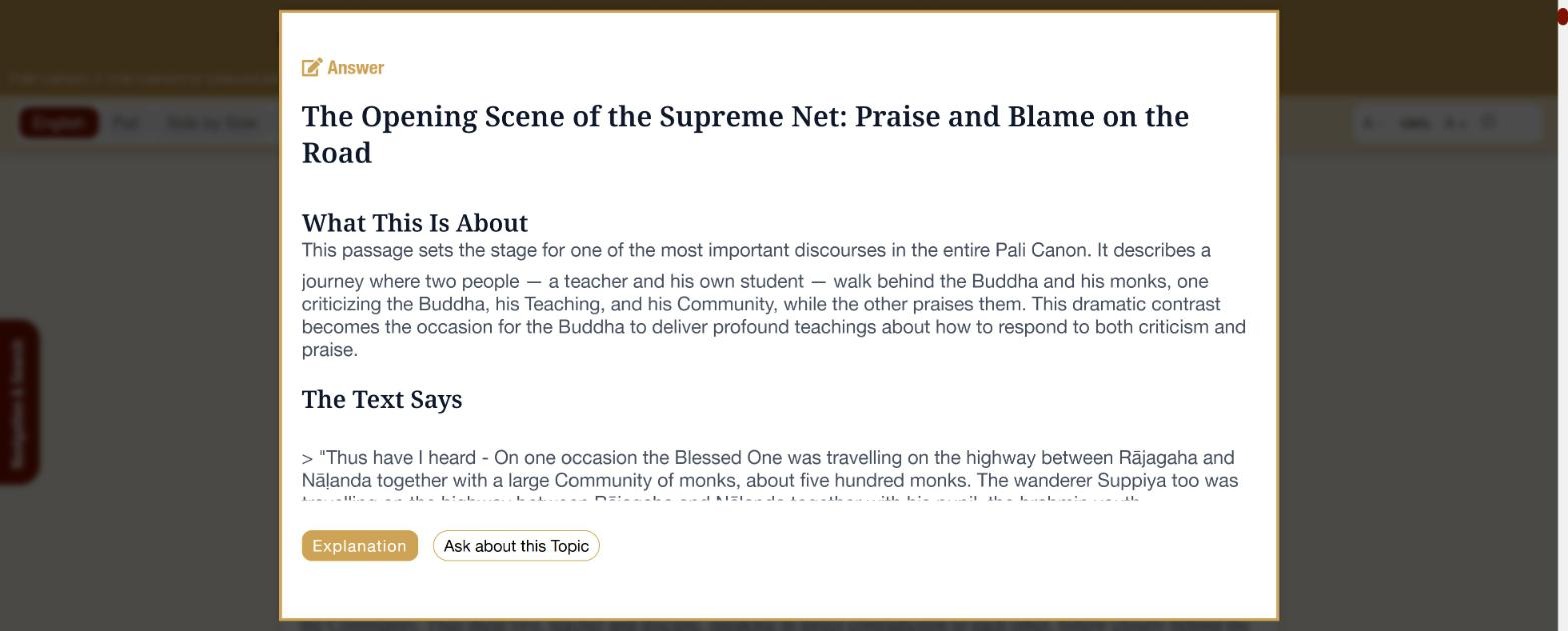
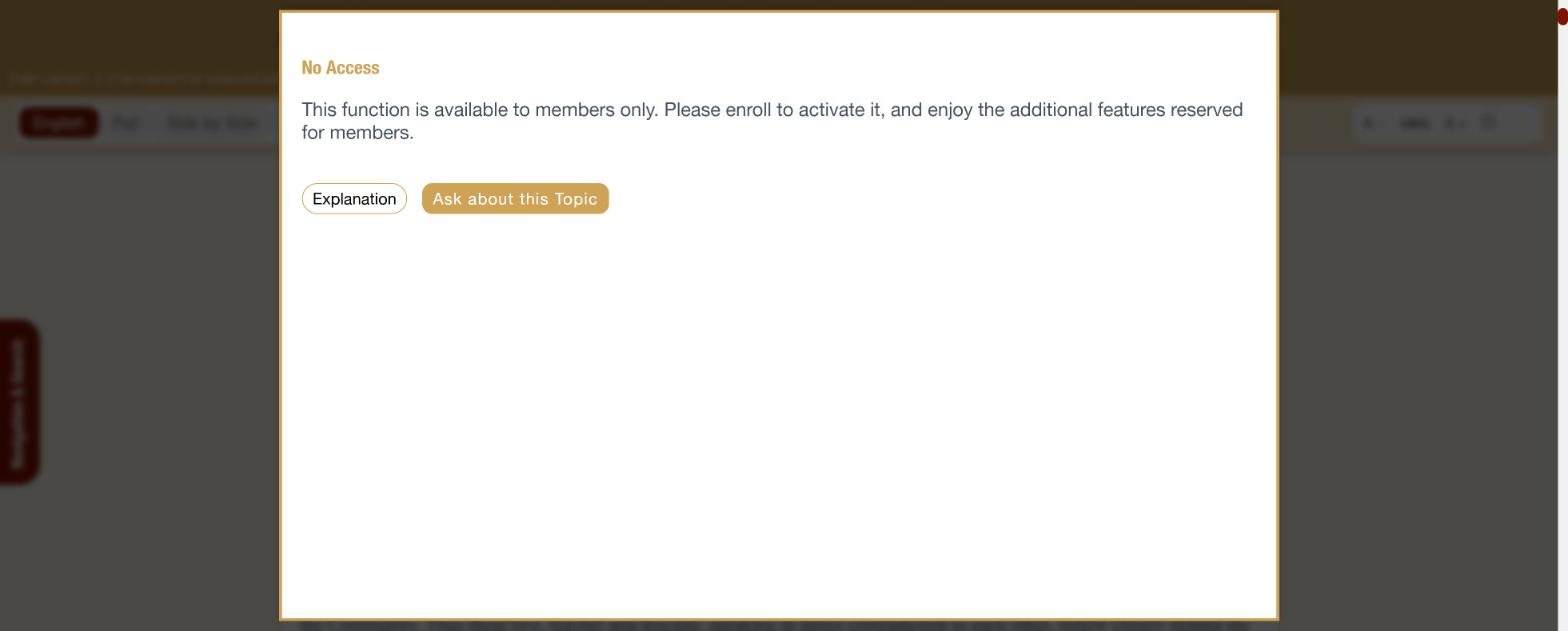
At the bottom of the window are two tabs. Explanation is the text you are reading. Ask about this Topic lets you ask your own questions about the paragraph whose explanation is open. The answers are drawn from the text, its commentary and subcommentary in the same way as Ask PaliVerse (section 15). This tab is available to members only (see section 16).
10. Moving between text, commentary and subcommentary
Try it on the site: Brahmajāla Sutta · its commentary (opens in a new tab)
PaliVerse links the three layers of the tradition paragraph by paragraph. The icon in the toolbar (“Commentaries and Subcommentaries”) switches these links on and off.
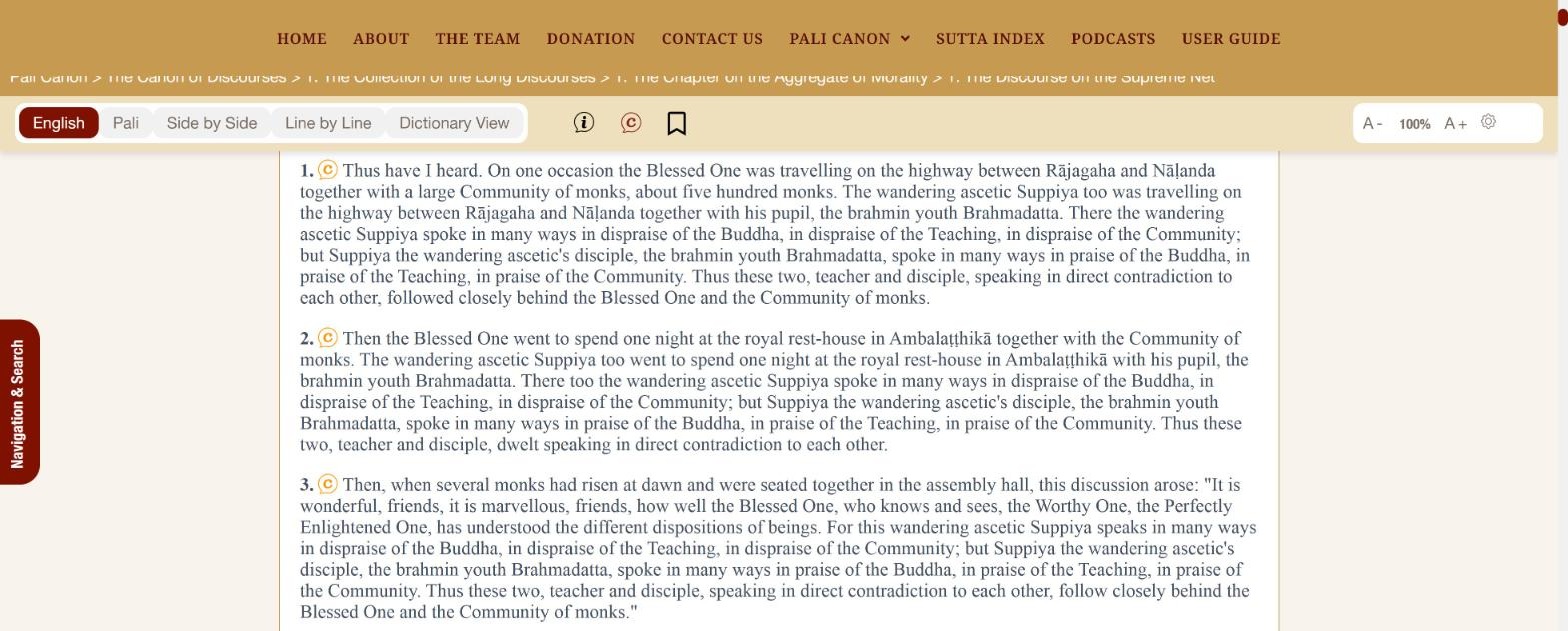
 marker next to every paragraph that has a commentary.
- Make sure the commentary markers are showing. They are shown by default; the icon in the toolbar switches them on and off.
- Click the marker next to a paragraph.
- The commentary opens at the paragraph that explains the one you came from. That paragraph is highlighted so you can find it at once.
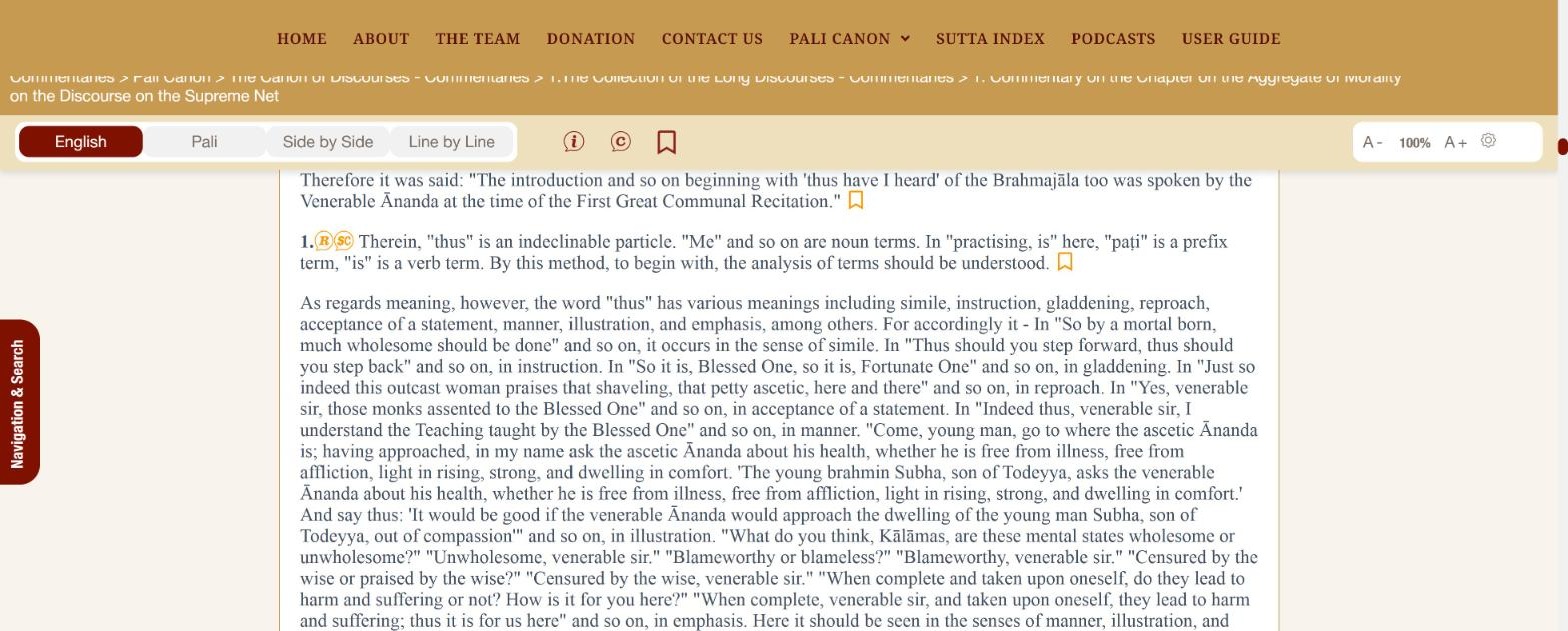
The links work in both directions. Inside a commentary, switching on the icon shows two markers next to each paragraph:
| Marker | Where it takes you |
|---|---|
 Root text | Back to the paragraph of the canonical text that this commentary explains. |
 SubCommentaries | Forward to the subcommentary (Ṭīkā) on this commentary paragraph. |
| Commentaries | Shown in root texts: forward to the commentary. |
The commentary and subcommentary pages have the same reading screen as the root texts, with the English, Pali, Side by Side and Line by Line views, explanations, bookmarks and settings. You can also open any commentary directly from the Pali Canon menu or from the Navigation & Search panel.
11. The Navigation & Search panel
Try it on the site: Brahmajāla Sutta (opens in a new tab)
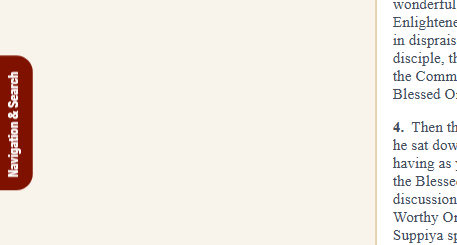
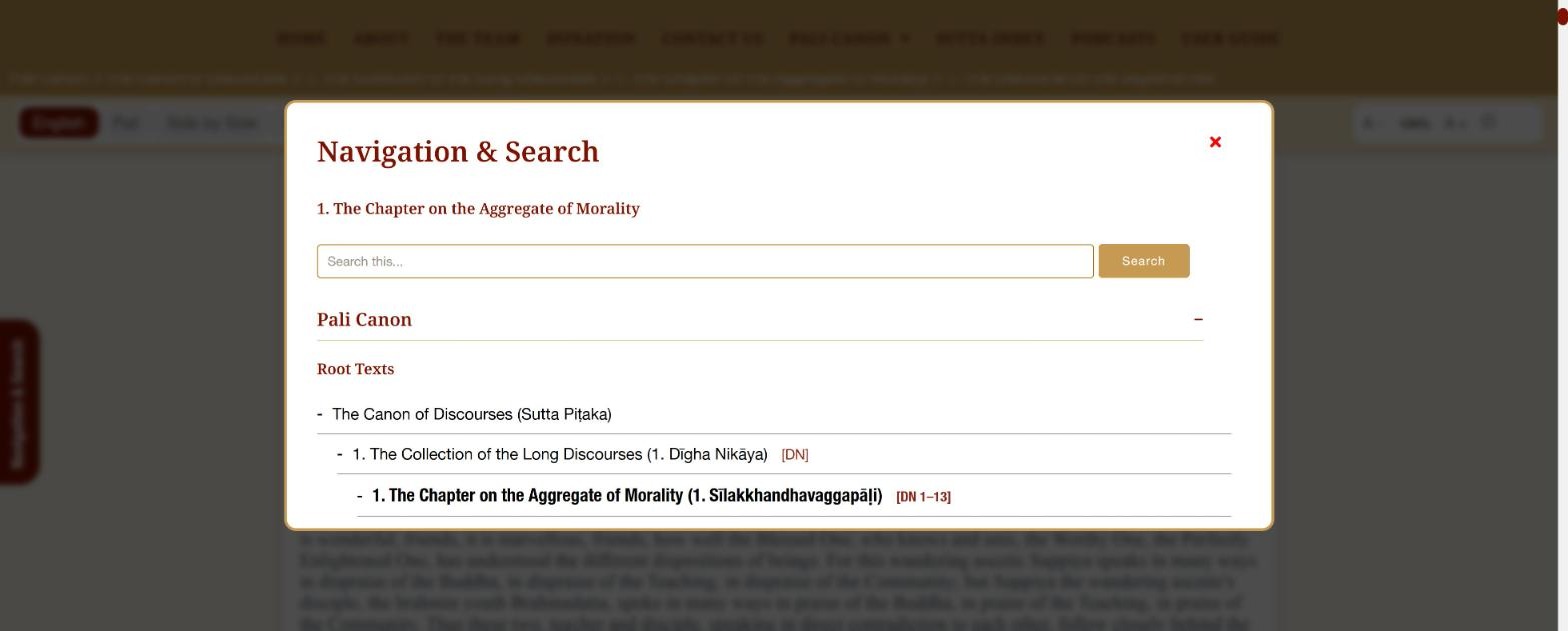
While you are reading any text, click the red Navigation & Search tab that sits on the left edge of the screen. It opens a panel with three tools: the complete table of contents of the Canon, a search box for the text you are reading, and your bookmarks. Close the panel with the red × or by pressing Esc.
Moving to another text
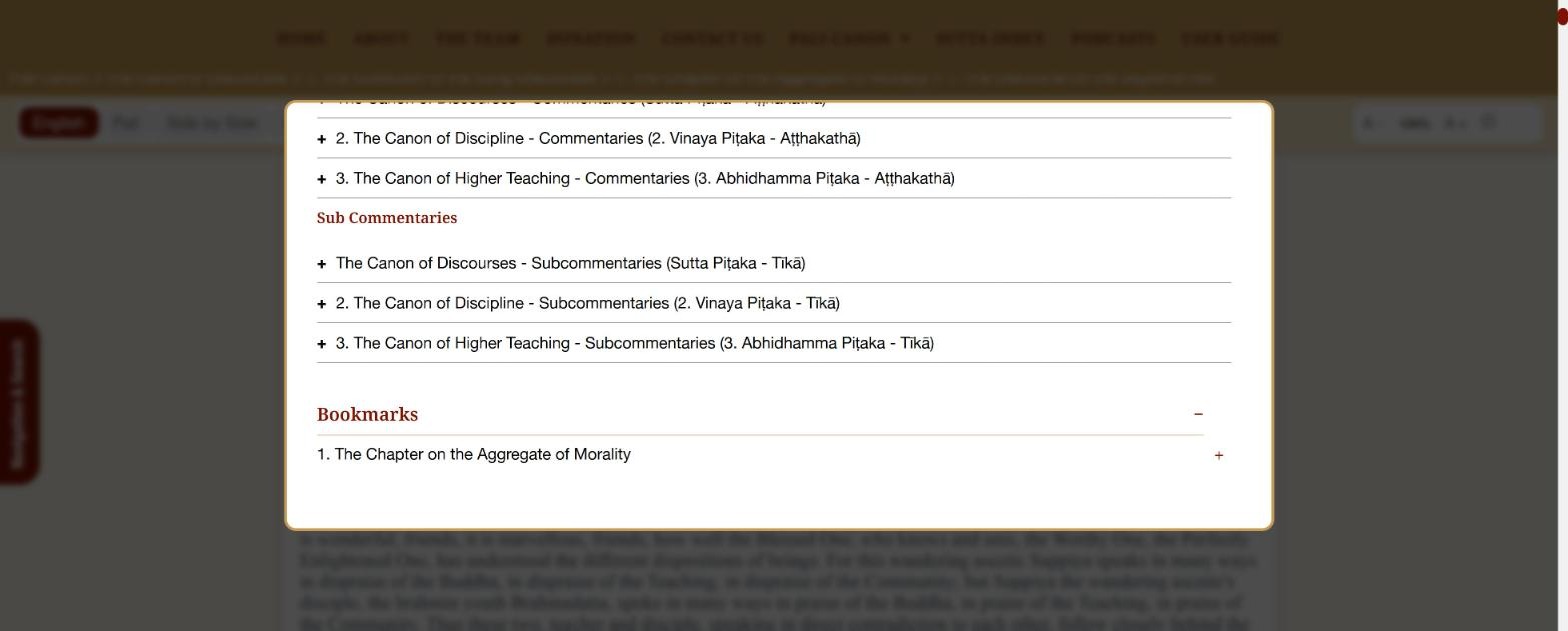
The tree under Pali Canon has three sections: Root Texts, Commentaries and Sub Commentaries. Click a + to open a branch and a − to close it; click a title to open that text. Because the panel is available on every reading screen, you never need to go back to the index pages.
Searching inside the text you are reading
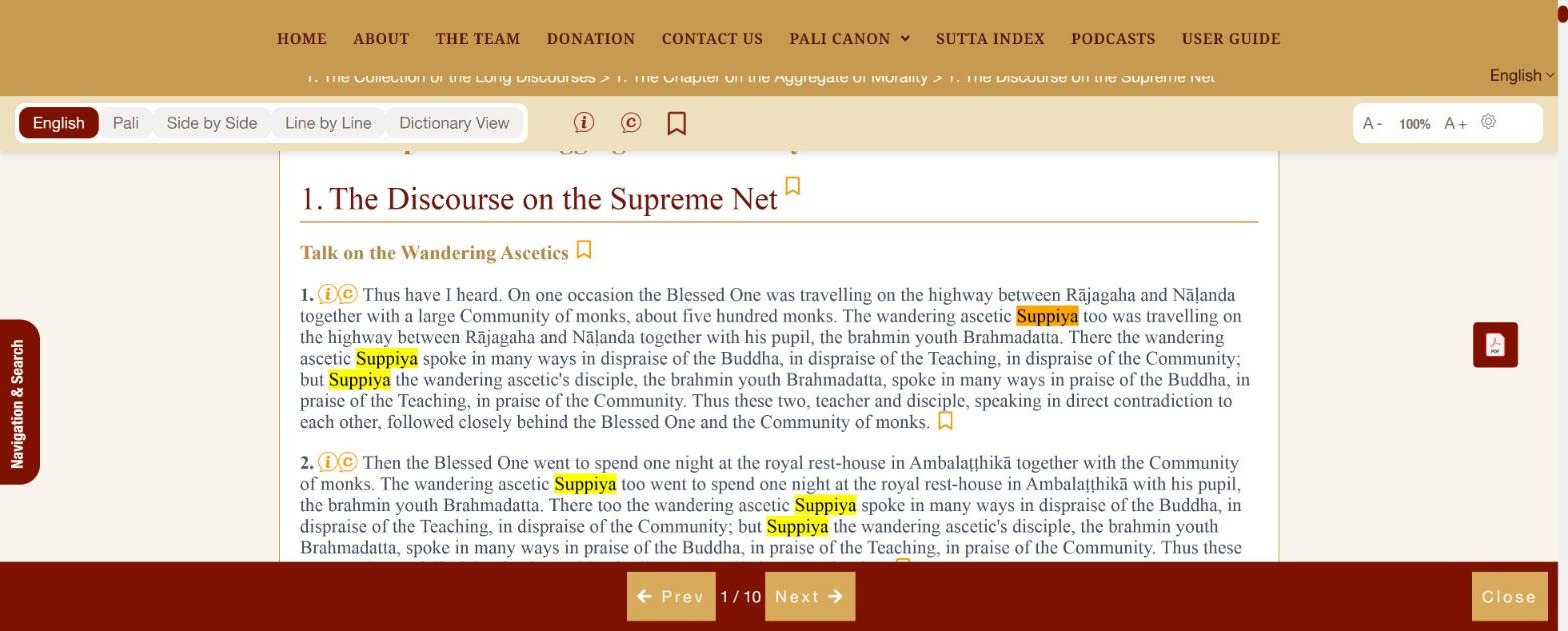
- Click the red Navigation & Search tab on the left edge to open the panel, then type a word in the Search this… box at the top (just below the name of the chapter you are reading) and press Enter or click Search.
- The panel closes, every occurrence in the current text is highlighted in yellow, and a bar appears at the bottom of the screen.
- Use Prev and Next to move from one occurrence to the next; the counter shows which one you are on (for example 1 / 10).
- Click Close to remove the highlighting.
12. Text size, fonts and colour themes
Try it on the site: Brahmajāla Sutta (opens in a new tab)
The controls at the right end of the toolbar adjust the appearance of the text. Your choices are kept for the next texts you open.
- A- and A+ make the text smaller or larger in steps of 20%. The current size is shown between them (100% is the default).
- The gear icon opens a small panel with two drop-down lists: Font Family and Theme.
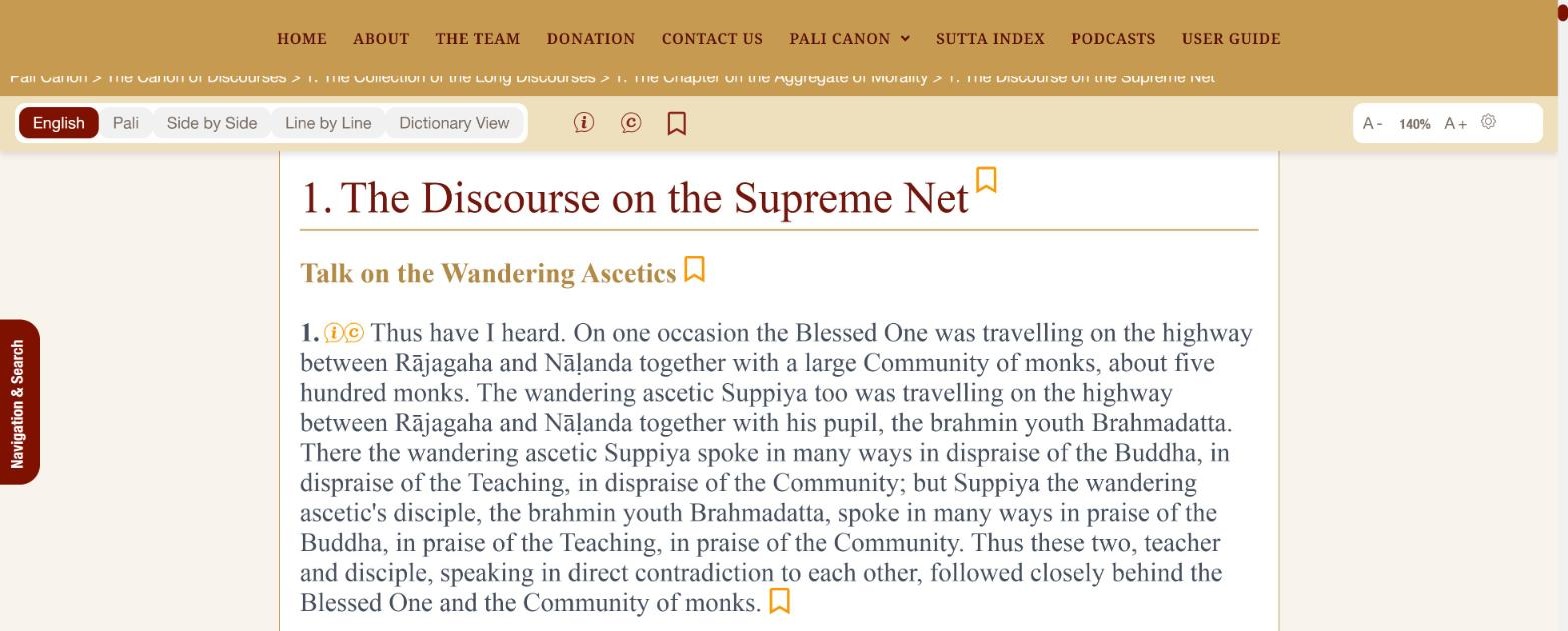
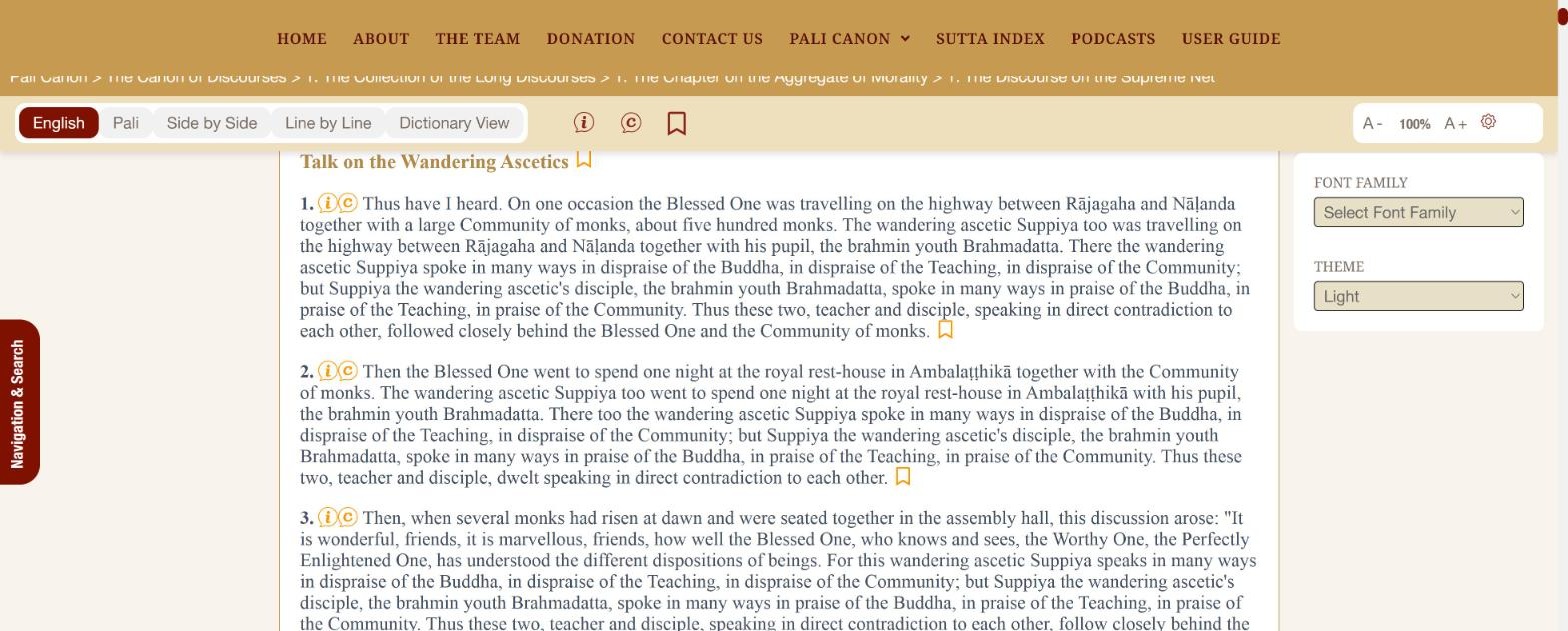
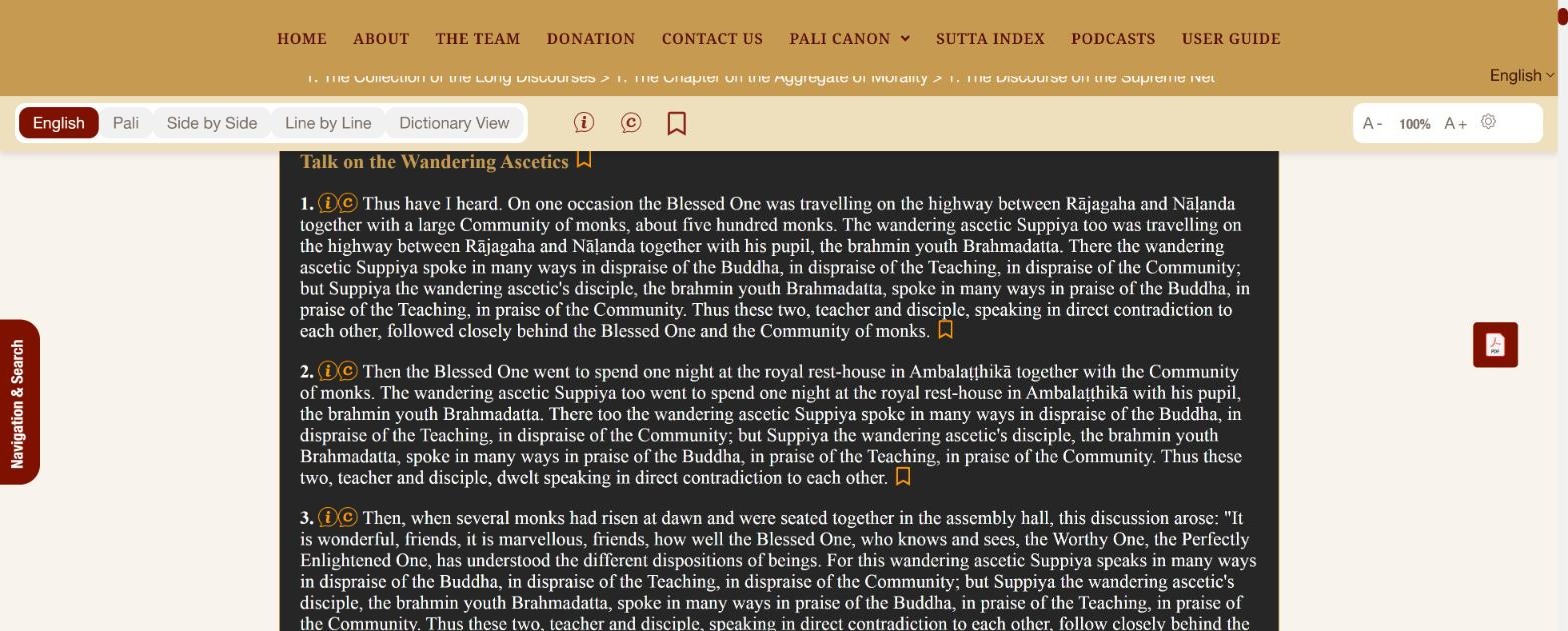
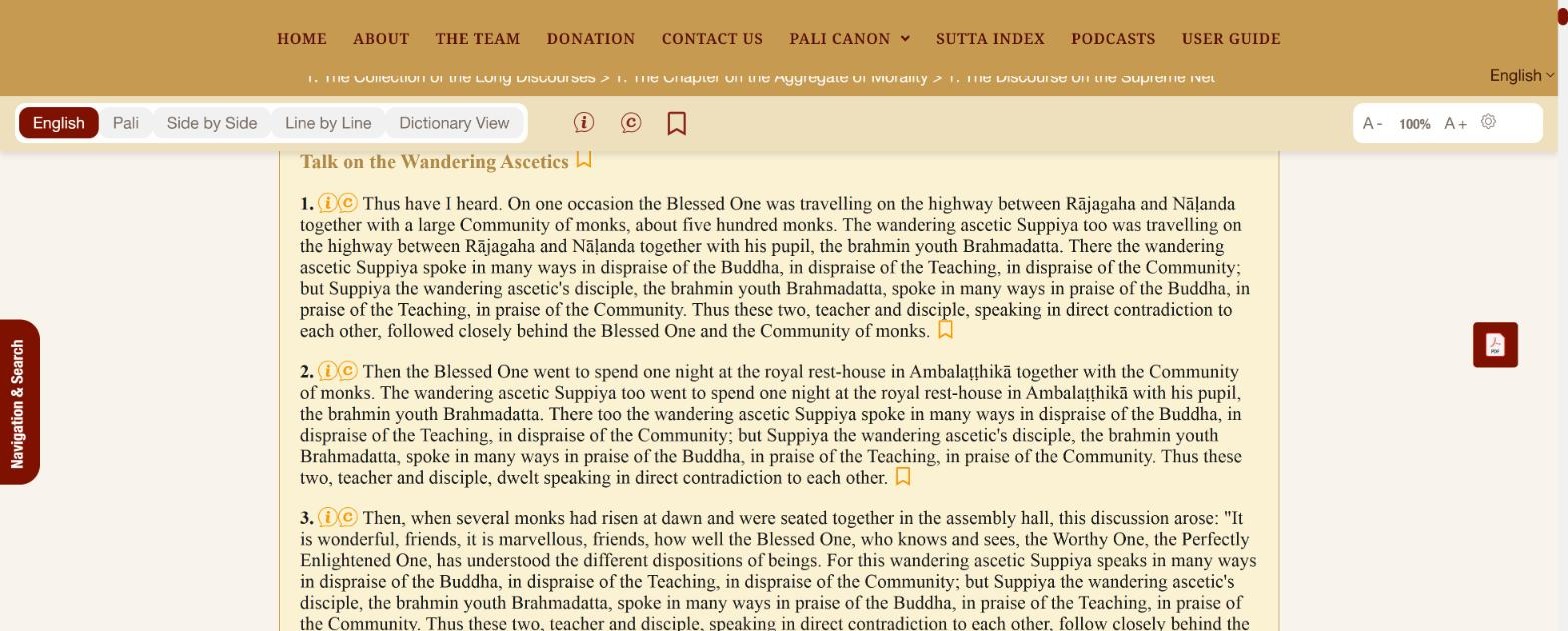
Four colour themes are available: Light (default), Dark, Sepia and Mint.
13. The floating buttons and PDF downloads
Try it on the site: Brahmajāla Sutta (opens in a new tab)
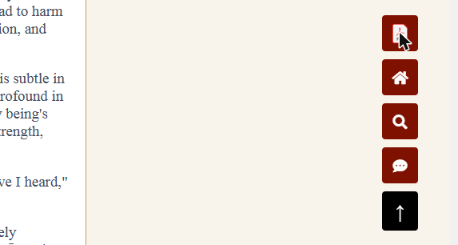
| Button | What it does |
|---|---|
| Opens the text you are reading as a PDF file in a new tab, ready to save or print. The same PDF icon appears next to every discourse on the index pages. | |
| House | Returns to the home page. |
| Magnifying glass | Opens the Search page. |
| Speech bubble | Opens Ask PaliVerse. |
| Arrow | Scrolls back to the top of the page. |
14. Sharing a link to a passage
Try it: this link opens the Brahmajāla Sutta at paragraph 1 (opens in a new tab)
As you scroll through a text, the web address in your browser is updated with a code for the paragraph on screen. To send someone a particular passage, copy the address from the address bar and share it: the link opens the text at that paragraph, with the paragraph highlighted in gold. The links created by the commentary markers work in the same way, so a commentary link always lands on the right paragraph.
15. Ask PaliVerse
Open on the site: Ask PaliVerse (opens in a new tab)
Ask PaliVerse answers questions in plain language using the texts themselves. When you ask a question it searches the roughly 8 million words of the root texts, commentaries and subcommentaries for the most relevant passages and composes an answer from them, with references.
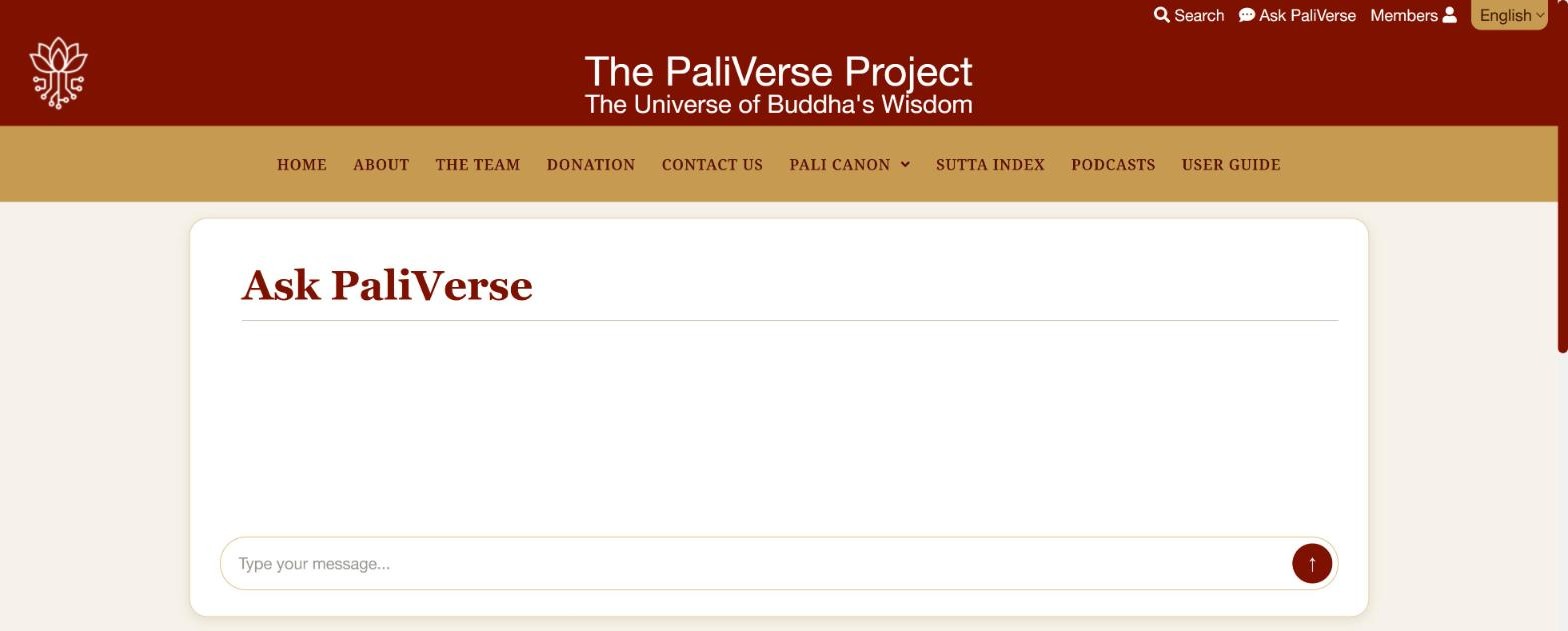
- Open Ask PaliVerse from the top right of any page, or from the speech-bubble floating button on a reading screen.
- Type your question, for example “What are the five hindrances?”, and press Enter.
- A message tells you that the search is running; the answer usually appears within half a minute.
- Scroll down inside the answer box to read all of it. You can ask a follow-up question in the same conversation.
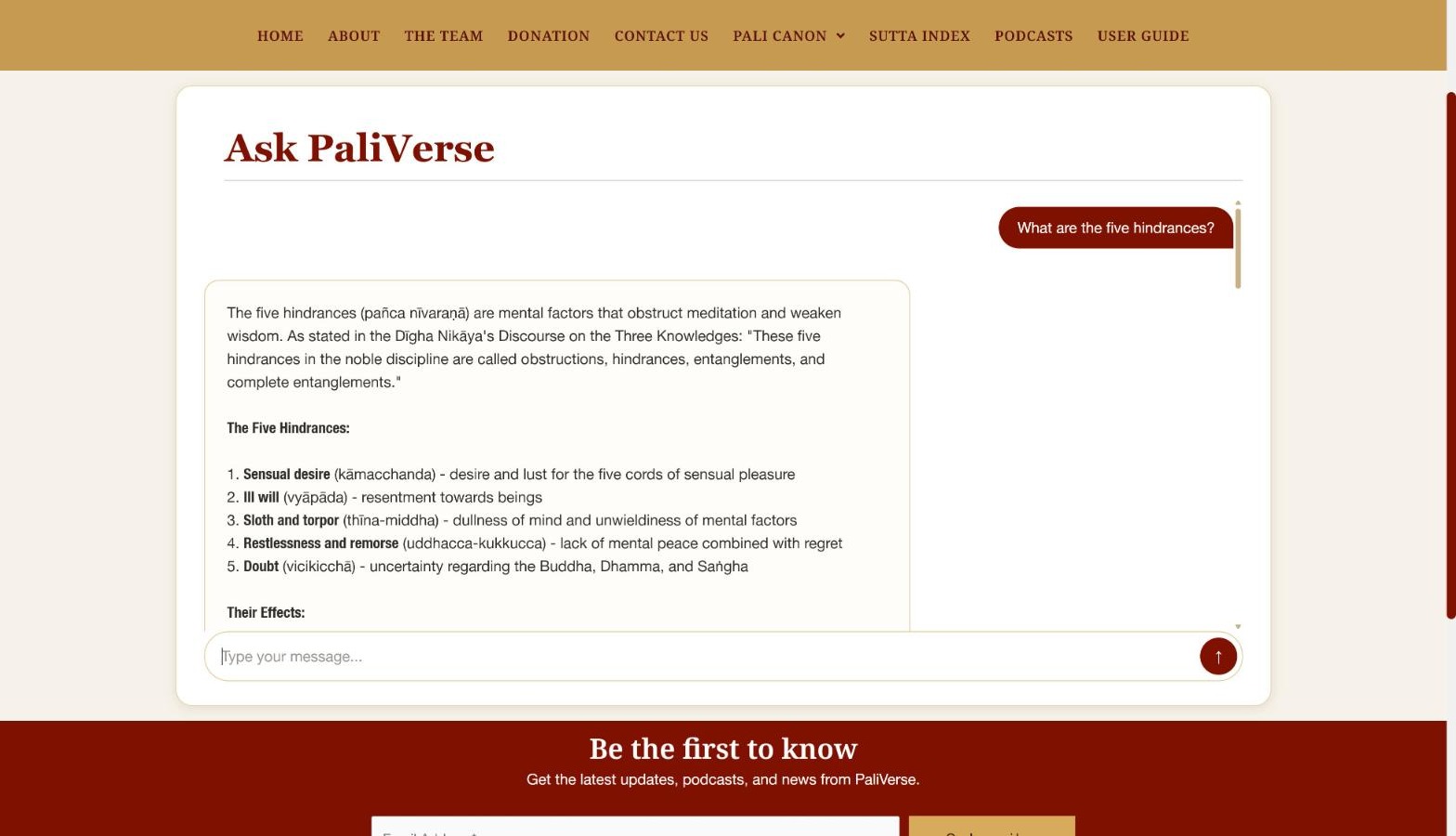
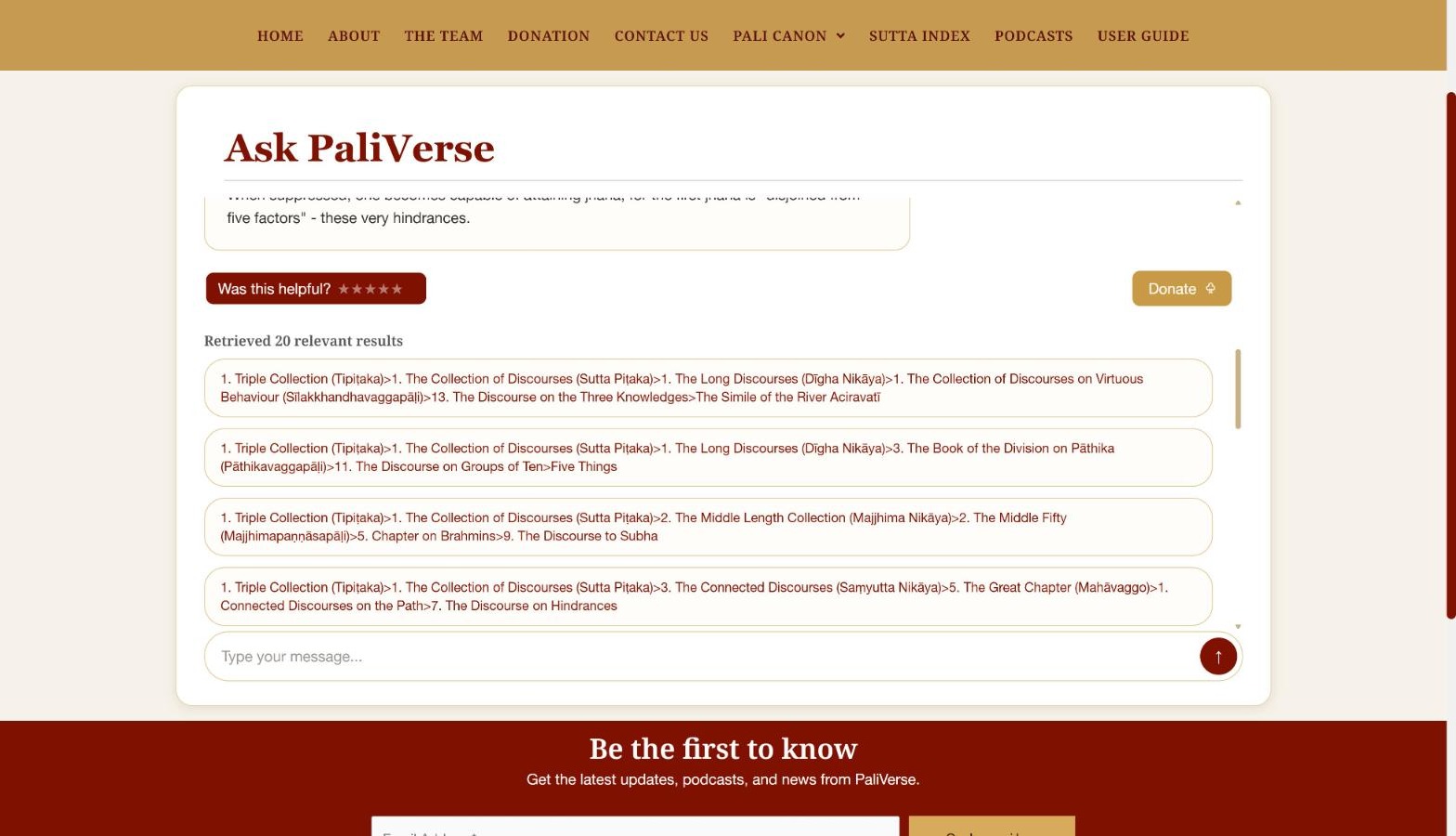
Below the answer you will find:
- Was this helpful? Click one to five stars to rate the answer; this helps the team improve the tool.
- Retrieved relevant results: the list of passages (up to 20) that were used, each shown as a path through the Canon. Click one to open that passage in the reading screen and check the source for yourself.
16. Members and membership
Open on the site: Members page (opens in a new tab)
Reading the Canon, the dictionary, the explanations, the commentary links, Search and Ask PaliVerse are all free and need no account. Membership adds personal features:
- the Ask about this Topic tab inside the explanation window, for questions about a specific passage;
- bookmarks that are saved with your account and listed in the Navigation & Search panel;
- private notes attached to individual paragraphs (section 17).
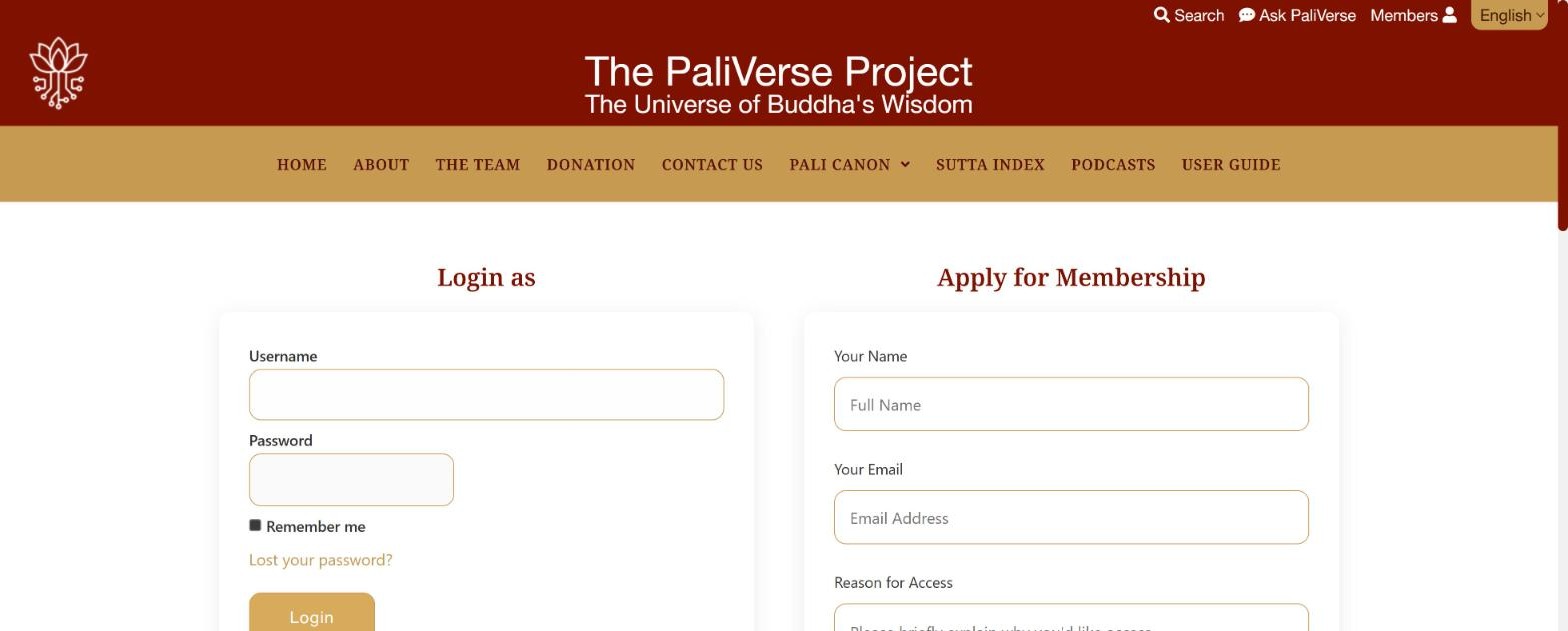
Applying for membership
- Click Members at the top right of any page (or Apply For Membership in the footer).
- In the Apply for Membership form, enter your name, your email address, a short reason for your request and the username you would like.
- Tick the consent box and send the form. The team reviews applications and sends your login details by email.
Logging in
Enter your username and password under Login as. Tick Remember me to stay logged in on this device. If you have forgotten your password, click Lost your password? and follow the instructions sent to your email address. After logging in, My Account in the footer takes you to your account page.
17. Bookmarks and notes
Members only: log in on the Members page, then try it on the Brahmajāla Sutta (opens in a new tab)
The icon in the toolbar (“Add and remove bookmarks”) lets you mark individual paragraphs so you can return to them later.
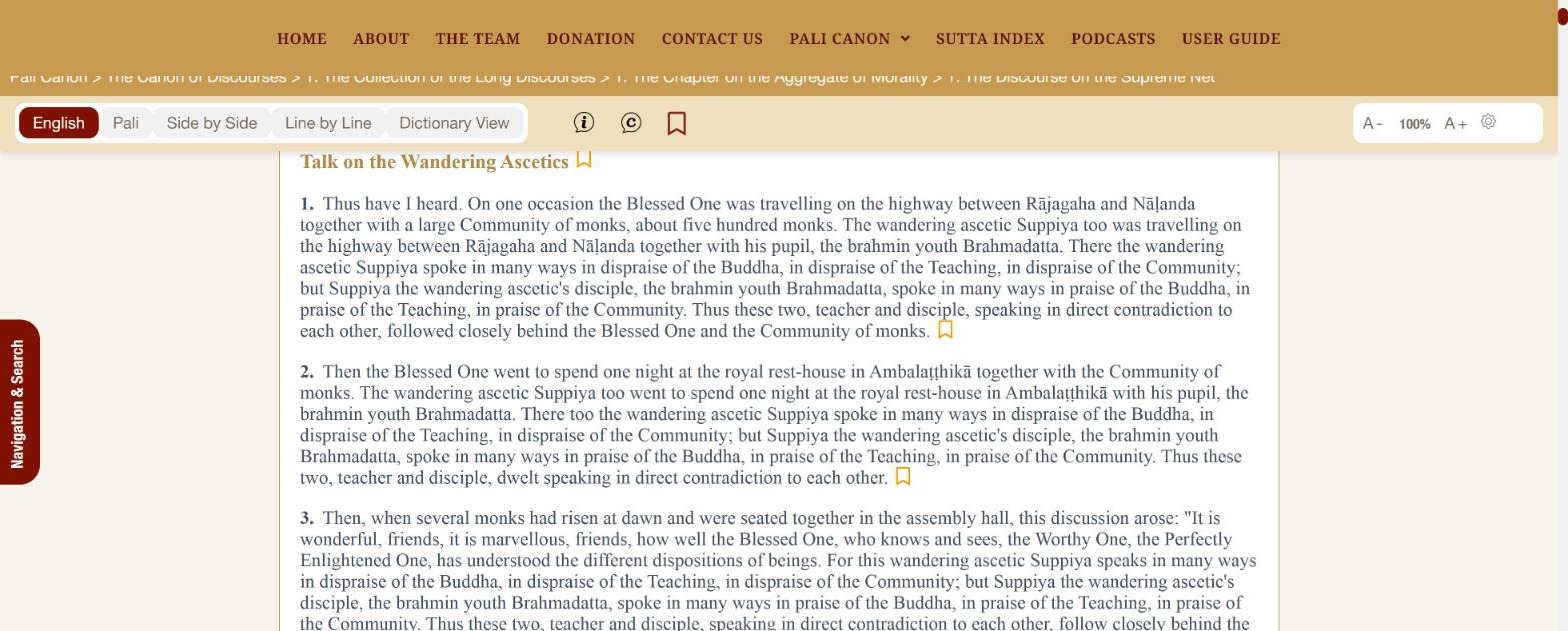
- Log in as a member (bookmarks are stored with your account; see section 16).
- Find the small bookmark symbol at the end of every paragraph. The symbols are shown by default; if you do not see them, click the icon in the toolbar.
- Click the symbol at the end of the paragraph you want to keep. A box asks you for a name for the bookmark; type one and confirm.
- Your bookmarks are listed in the Bookmarks section at the bottom of the Navigation & Search panel (section 11). Click a bookmark there to jump back to the paragraph.
Personal notes
Members who are logged in see a fourth icon in the toolbar (“Add notes”). It shows and hides the small note symbols next to every paragraph; they are shown by default. Click the symbol next to the paragraph you want to annotate, type your note in the box headed “Add notes for personal use” and click Add note. Notes are private to your account and are not visible to other readers. Click the toolbar icon to hide the note symbols.
18. Podcasts
Open on the site: Podcasts page (opens in a new tab)
The Podcasts page (menu bar) lists the PaliVerse podcast series: each episode goes through one discourse, reading the root text first and then bringing in the commentary and subcommentary where they deepen it.
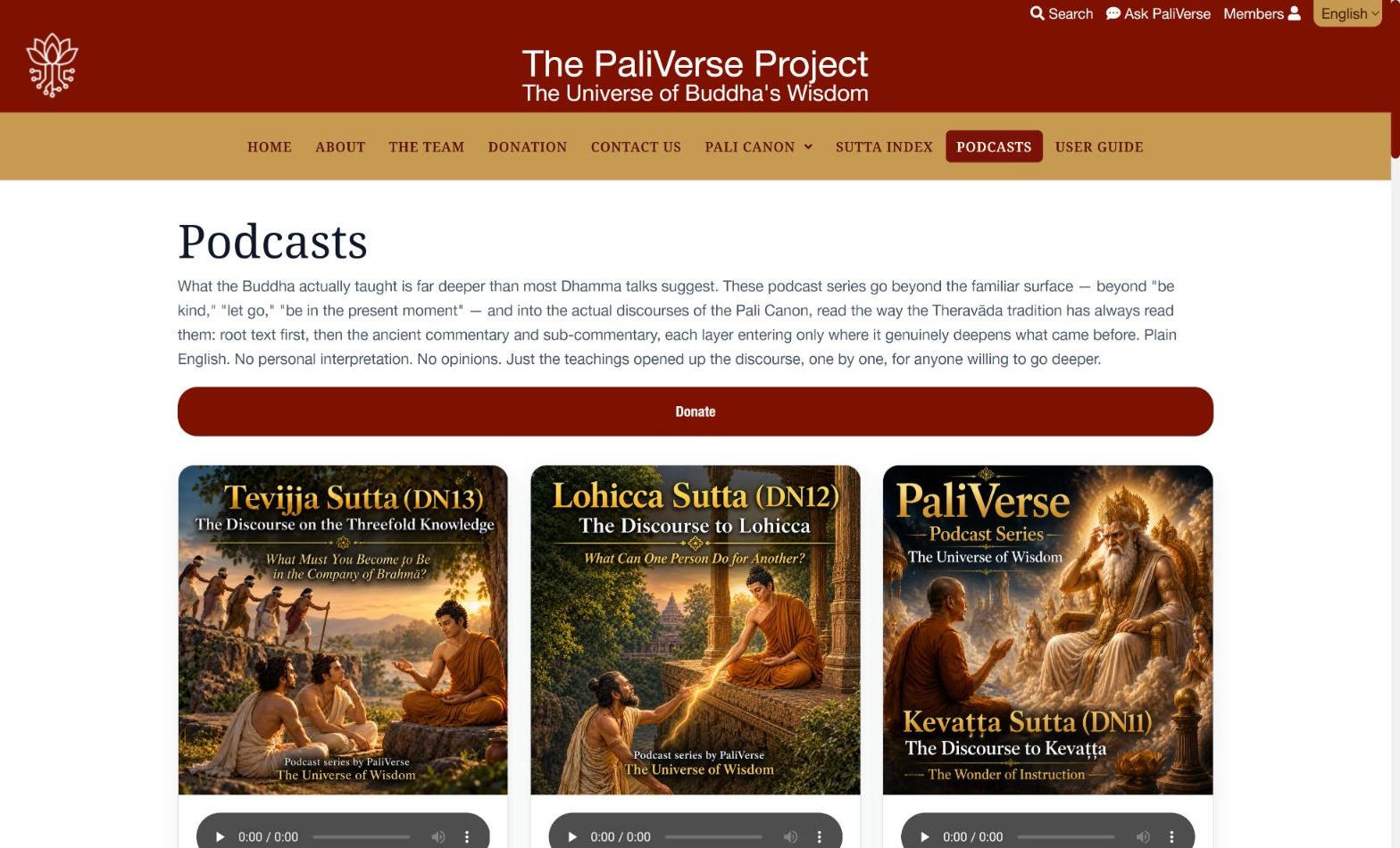
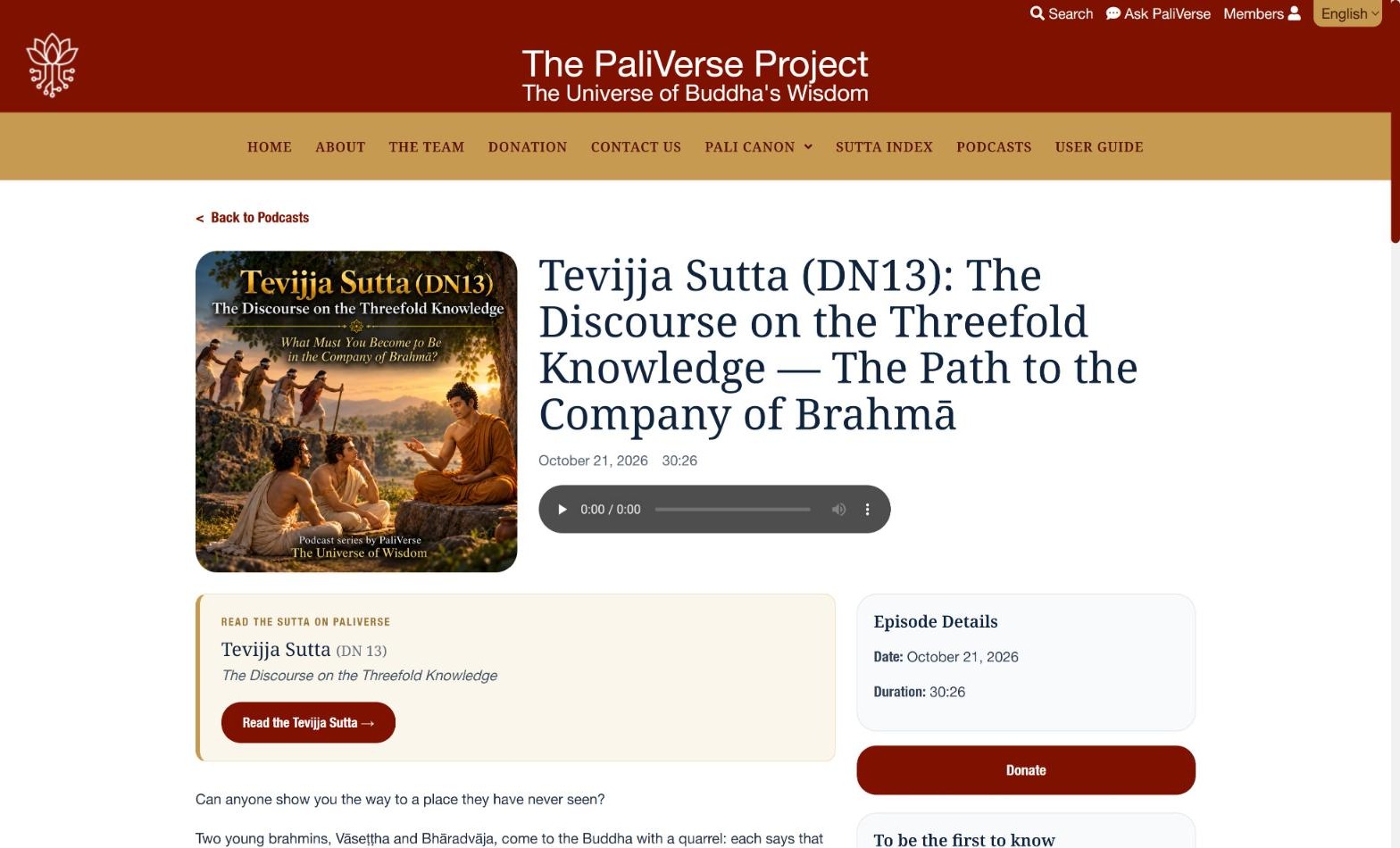
Click Back to Podcasts to return to the list.
19. Using PaliVerse on a phone or tablet
The site adapts to small screens. The main menu collapses into a menu button, and on a reading screen the toolbar is folded into a STUDY TOOLS tab at the top right of the text: tap it to reach the view buttons, the explanation, commentary and bookmark icons, and the text-size and theme settings. The Navigation & Search tab stays on the left edge. The floating buttons are hidden on phones; use the Search and Ask PaliVerse links at the top of the page instead, and download PDFs from the index pages.
20. Quoting and reusing the translations
Open on the site: Permissions and use (opens in a new tab)
The Pāli texts are in the public domain; the PaliVerse translations, glossary, explanations and audio are the property of the Centre for Study and Practice of Theravada and are offered free for personal study. In short:
- Allowed without asking: reading and studying online; printing or saving reasonable extracts for personal use; quoting short passages in correspondence, talks or social media with attribution; using the search and study tools.
- Monastics and Dhamma teachers may use the translations in talks and non-commercial handouts for their communities, acknowledging PaliVerse as the source.
- Academic publication and larger reprints need prior written permission, normally granted free of charge: write to [email protected].
- Not permitted: using the content to train or feed AI systems, automated scraping or mass downloading, and selling the content for profit.
The recommended citation form is:
PaliVerse. English translation of [text name, e.g. Mahāsatipaṭṭhāna Sutta, DN 22]. Centre for Study and Practice of Theravada, Athens. Available at: https://paliverse.org. Accessed [date].
The full text is on the Permissions and use page linked in the footer.
21. Quick reference: buttons and symbols
| Where | Symbol or button | Meaning |
|---|---|---|
| Toolbar | English Pali Side by Side Line by Line | Layout of the text (the last three open in a new tab). |
| Toolbar | Dictionary View | Make Pāli words clickable for dictionary look-up. |
| Toolbar | Show or hide the explanation markers on every paragraph. | |
| Toolbar | Show or hide the commentary / subcommentary / root-text markers. | |
| Toolbar | Show or hide the bookmark markers (members). | |
| Toolbar | Show or hide the note markers (members, when logged in). | |
| Toolbar | A- 100% A+ | Text size. |
| Toolbar | Gear | Font family and colour theme (Light, Dark, Sepia, Mint). |
| In the text | | Open the explanation of this paragraph. |
| In the text | | Go to the commentary on this paragraph. |
| In the text | | Go to the subcommentary on this paragraph. |
| In the text | | Go back to the root text of this paragraph. |
| In the text | Gold bookmark at the end of a paragraph | Bookmark this paragraph. |
| In the text | Small note symbol next to a paragraph | Add a private note to this paragraph (members). |
| In the text | Dotted underline under a Pāli word | Click for the dictionary entry. |
| In the text | Gold background on a paragraph | The paragraph you were sent to by a link or a marker. |
| Index pages | + / − | Open or close a chapter. |
| Index pages | Red code in brackets, e.g. [DN 1, PTS 1.1–1.46] | Abbreviation and PTS page reference. |
| Index pages | Small PDF icon | Download the discourse as a PDF. |
| Left edge | Red “Navigation & Search” tab | Table of contents, in-text search and bookmarks. |
| Right edge | PDF, house, magnifying glass, speech bubble, arrow | PDF download, Home, Search, Ask PaliVerse, back to top. |
22. Questions and answers
I clicked “Side by Side” and nothing seemed to happen.
The new layout opened in a new browser tab. Look at the tabs at the top of your browser.
Clicking a Pāli word does nothing.
The dictionary is only active when Dictionary View is selected in the toolbar (shown in dark red). Click it first.
The search box in the Navigation & Search panel says “No results”.
That box only searches the text you have open. Use the Search page (top right) to search the whole Canon.
I do not see the (i) or (c) markers next to the paragraphs.
They are shown by default, but they can be switched off. Click the corresponding icon in the toolbar to show them again; a second click hides them.
The “Ask about this Topic” tab says “No Access”.
This tab is a member feature. Apply for membership from the Members page and log in.
My bookmarks are not listed.
Bookmarks are saved with your member account. Log in before adding them.
How do I cite a passage?
Use the reference shown in red on the index pages or in the Sutta Index (for example DN 22, PTS 2.290) together with the citation form in section 20.
How do I get in touch?
Use the Contact Us page in the menu bar, or write to [email protected].